
The Ultimate Guide to Removing Backgrounds from Logo Images for eCommerce
Learn how to remove background from logo images effectively. We cover AI tools, manual methods, and platform-specific requirements for transparent logos.
Your logo is the heartbeat of your brand identity. It appears on your website, your product packaging, your social media profiles, and—crucially—as an overlay on your product photography. However, nothing screams "amateur" louder than a high-quality product photo marred by a logo with a clunky white bounding box.
If you've ever struggled to place your logo over a lifestyle image only to find that the white background ruins the aesthetic, you are not alone. Removing the background from a logo image is one of the most fundamental skills for any eCommerce seller. Whether you are prepping assets for Amazon, Etsy, or your own Shopify store, having a clean, transparent PNG version of your logo is non-negotiable.
Why Logo Background Removal is Different from Product Photos
While removing the background from a photo of a pair of shoes involves dealing with shadows, textures, and depth of field, logos present a different set of challenges. Logos often contain sharp geometric lines, intricate typography, and specific brand colors that must remain untouched.
When you remove a background from a logo, you aren't just "cutting it out." You are ensuring that the anti-aliasing (the smooth pixels on the edge of curves) blends perfectly with whatever background the logo will eventually sit on. A poor removal job leads to "fuzziness" or "white halos" around the edges of your brand name.
Common Logo File Formats and Their Limitations
Before diving into the "how-to," it is essential to understand why you likely have this problem in the first place. Most logos are initially delivered in one of three formats:
| Format | Transparency Support | Best Use Case | Background Issue |
|---|---|---|---|
| JPEG | No | Web photos, small file sizes | Always has a solid color background (usually white) |
| PNG | Yes | Web logos, overlays, icons | Can be saved with a background if not exported correctly |
| SVG | Yes | Professional printing, scalable web art | Vector-based; doesn't have "pixels" to remove, but requires design software |
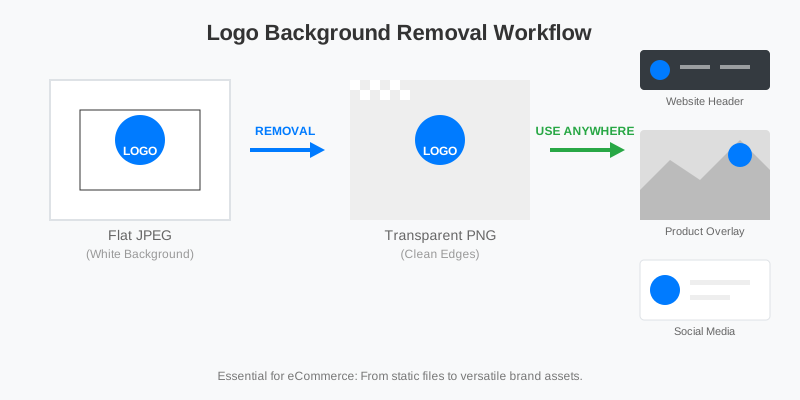
If you only have a JPEG of your logo, you are essentially stuck with a "flat" image. To make it versatile, you must convert that solid background into transparency.
The Evolution of Background Removal Techniques
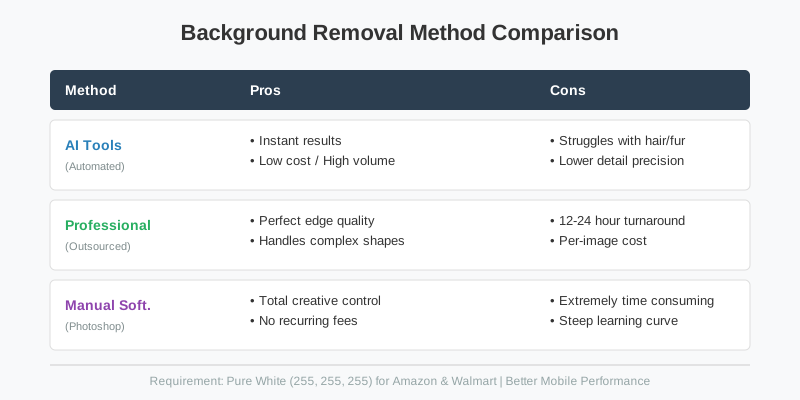
In the early days of eCommerce, removing a background required a steady hand and an expensive Photoshop license. You would use the Pen Tool to manually trace every curve of your logo—a process that could take an hour for complex designs.
Today, AI has shifted the landscape. AI-powered tools like SellerCam can detect the difference between a logo's "foreground" and its "background" in milliseconds. However, not all tools are created equal. Some "free" online tools compress your image so much that your logo becomes blurry, which is a disaster for brand perception.
How to Remove Background from Logo: A Step-by-Step Workflow
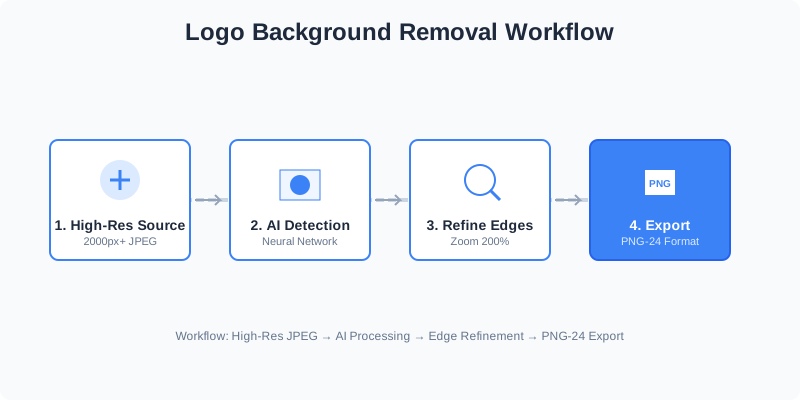
Whether you are using a dedicated AI tool or professional software, the workflow generally follows a specific path to ensure the highest quality output.
Step 1: Source the Highest Quality Original
Never start with a thumbnail or a screenshot. The more pixels the AI has to work with, the cleaner the edges will be. If you have a 500px logo, try to find the 2000px version before you begin.
Step 2: Choose Your Tool
For most sellers, an AI-based background remover is the most efficient choice. Tools like SellerCam allow you to upload the image and let the neural network handle the "edge detection." This is particularly useful for logos with complex fonts or "distressed" textures that are impossible to trace manually.
Step 3: Refine the Edges
After the initial removal, zoom in to 200%. Look for "artifacts"—stray pixels that weren't quite deleted. Professional tools will offer a "refine" brush to clean up these areas.
Step 4: Export as PNG-24
This is the "Golden Rule" of logos. Always export as a PNG-24 (not PNG-8) to ensure that the transparency is smooth and the colors remain vibrant.
Applying Your Transparent Logo to Product Images
Once you have your transparent logo, the real fun begins. You can now use it as a watermark or a brand anchor on your product photos. This is where SellerCam's integration becomes incredibly powerful. Instead of jumping between three different apps, you can take a product photo and overlay your newly cleaned logo in one smooth motion.
The difference is night and day. A transparent logo allows the product to breathe and maintains the professional "lifestyle" feel that modern shoppers expect on platforms like Instagram and Shopify.
Platform Requirements for Brand Assets
Different marketplaces have different rules for how logos should appear on product images. While Amazon is notoriously strict about "pure white backgrounds" for main images (and generally forbids logos on the main image), your secondary images and A+ content are where your transparent logo needs to shine.
| Platform | Logo on Main Image? | Logo on Secondary Images? | Recommended Format |
|---|---|---|---|
| Amazon | Prohibited | Encouraged (Brand Story) | Transparent PNG |
| Etsy | Allowed | Allowed | High-res PNG |
| Shopify | Allowed | Allowed | SVG or PNG |
| N/A | Essential for Watermarking | Transparent PNG |
Avoiding the "Halo Effect"
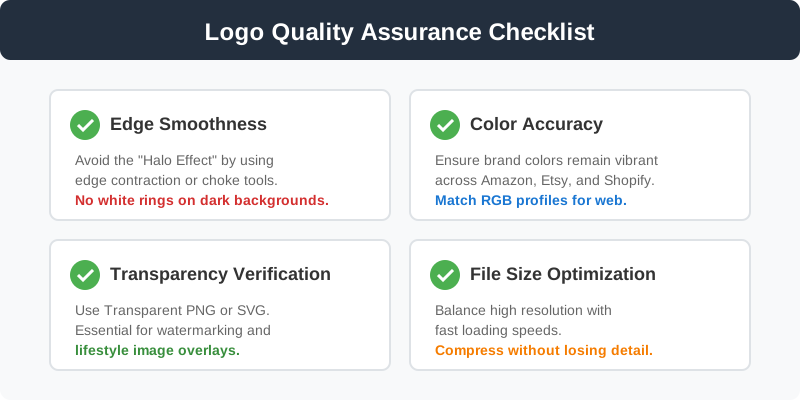
One of the most common mistakes when removing a background from a logo is the "Halo Effect." This happens when the tool leaves a 1-pixel border of the original white background around the edges of the logo. On a white website, you won't notice it. But the moment you place that logo on a dark "Lifestyle" image, the white ring becomes glaringly obvious.
To avoid this, use a tool that supports "Edge Contraction" or "Choke." This slightly pulls the transparency mask inward by a fraction of a pixel, ensuring only the logo colors remain.
Why SellerCam is the Preferred Choice for Sellers
While there are many generic background removers, SellerCam is built specifically for the eCommerce workflow. It understands that a logo isn't just an image—it's a brand asset.
- Precision AI: Our models are trained on millions of product and brand images, ensuring that even thin serifs on fonts aren't "eaten" by the removal process.
- Batch Processing: If you have a variety of brand icons or sub-logos, you can process them all at once.
- Direct Integration: Once your background is removed, you can immediately test it against different backdrops or use our AI Background Generator to see how it looks in a "studio" setting.
Final Best Practices for Logo Management
Removing the background is just the first step. To maintain a professional brand, follow these long-term management tips:
- Create a "Dark" and "Light" version: Sometimes your logo is dark blue. If you put it on a dark photo, it disappears. Once the background is removed, create a version where the logo is inverted to white for use on dark backgrounds.
- Keep the Aspect Ratio: Never "stretch" your logo to fit a space. Always scale it proportionally.
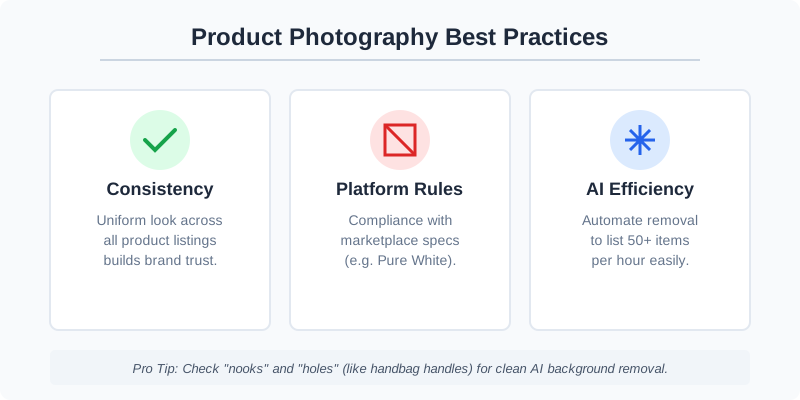
- Check for Transparency "Gaps": Ensure that the "holes" in letters like 'O', 'A', and 'P' are also transparent. Lesser AI tools often miss these "islands."
Conclusion: Professionalism is in the Details
In the competitive world of eCommerce, trust is your most valuable currency. A logo with a messy white background tells the customer that you don't pay attention to details. A clean, transparent logo tells them that you are a professional brand they can rely on.
Don't let a technical hurdle like background removal slow down your brand growth. With modern AI tools, what used to take an hour now takes seconds.
Ready to clean up your brand assets? Try SellerCam's AI tools today and see how easy it is to transform your product photography and brand logos into professional-grade assets.
Author

Categories
More Posts

Mastering Amazon Product Image Editing: The Ultimate Guide to High-Conversion Visuals
Learn the essential techniques for Amazon product image editing. From technical compliance to AI-powered background removal, discover how to boost your sales with professional visuals.
Ghost Mannequin vs. On-Model Images: Which Drives Higher Shopify Conversions?
Discover the impact of ghost mannequin photography versus live model images on Shopify conversion rates. Learn which style fits your brand, cost implications, and how AI is changing the game.

What Can I Use to Remove Background from Image? The Ultimate Guide for E-commerce
Discover the best tools and techniques to remove backgrounds from images. From AI-powered automation to manual precision, find the perfect solution for your product photography.
Newsletter
Join the community
Subscribe to our newsletter for the latest news and updates