
What Can I Use to Remove Background from Image? The Ultimate Guide for E-commerce
Discover the best tools and techniques to remove backgrounds from images. From AI-powered automation to manual precision, find the perfect solution for your product photography.
Finding yourself asking "what can I use to remove background from image" is a rite of passage for every modern e-commerce entrepreneur. Whether you are scaling a shop on Shopify, listing unique finds on Etsy, or aiming for the strict "Buy Box" on Amazon, the quality of your product images—specifically the cleanliness of your background—directly dictates your conversion rate.
In the early days of digital commerce, your only options were expensive photography studios or spending hours mastering the "Pen Tool" in Adobe Photoshop. Today, the landscape has shifted. We now have access to sophisticated AI background removal tools that can do in seconds what used to take hours. However, with so many options available, the challenge isn't finding a tool; it's finding the right tool for your specific workflow.
Why Background Removal is Non-Negotiable
Before we dive into the "what," we must understand the "why." A cluttered background distracts the customer. It introduces "visual noise" that competes with your product for attention. Professional background removal serves three primary purposes:
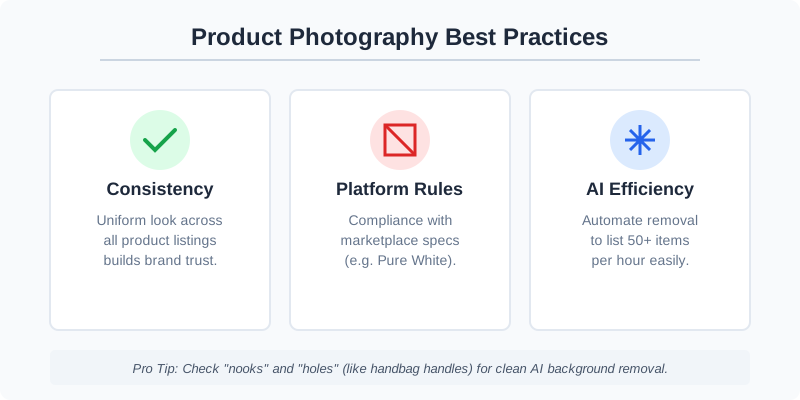
- Platform Compliance: Amazon and Google Shopping essentially mandate pure white backgrounds for main images. Failure to comply can lead to suppressed listings or account warnings.
- Consistency: It ensures all your products look like they belong to the same brand, regardless of when or where they were photographed. This builds trust with consumers.
- Versatility: Once the background is removed, you can place your product in lifestyle scenes, seasonal promotions, or clean social media graphics.
- Faster Loading Times: Images with solid backgrounds often compress better, leading to faster page load speeds which is a critical SEO factor.
| Platform | Background Requirement | Primary Image Goal |
|---|---|---|
| Amazon | Pure White (RGB 255, 255, 255) | High-contrast, zero distraction |
| Shopify | Flexible (Transparent/White preferred) | Brand storytelling and lifestyle |
| Etsy | Natural or Clean (No strict rule) | Authenticity and handmade feel |
| Google Shopping | Solid White or Light Grey | Clarity and fast loading |
The Best Tools to Remove Backgrounds from Images
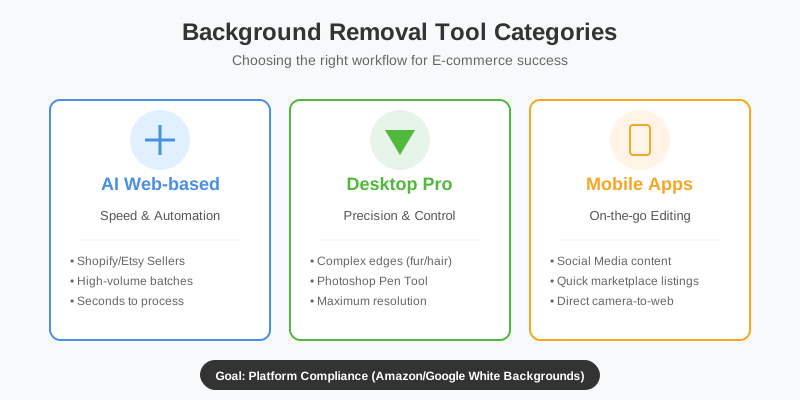
When evaluating what to use, we categorize tools into three main buckets: AI-Automated Web Tools, Professional Desktop Software, and Mobile Editing Apps.
1. AI-Automated Web Tools (The Efficiency Kings)
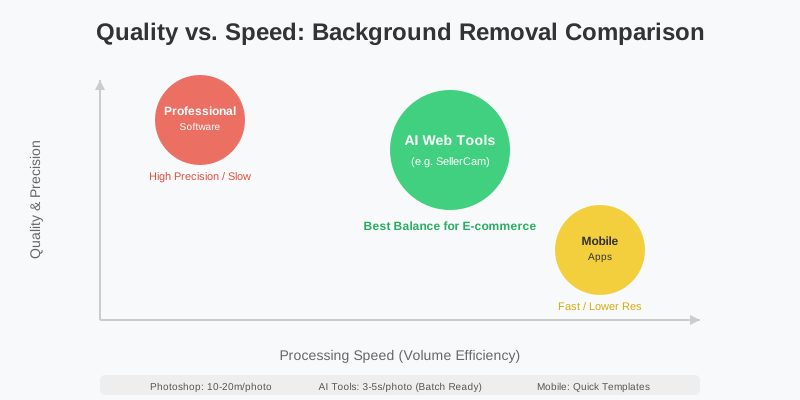
For most sellers, AI tools like SellerCam are the gold standard. These tools use neural networks—specifically Deep Learning models trained on millions of product images—to identify the "subject" and "background" pixels.
What sets a professional tool like SellerCam apart from generic background removers is its focus on e-commerce. It doesn't just remove the background; it understands product edges, handles transparency (like glassware), and preserves shadows to ensure the product doesn't look "floating" or fake.
Key Benefits of AI Tools:
- Speed: Process hundreds of images in the time it takes to do one manually.
- Accessibility: No design skills required.
- Cost-Effective: Usually priced per image or via a low monthly subscription.
2. Professional Desktop Software (The Precision Masters)
If you are dealing with extremely complex subjects—think high-end jewelry with intricate reflections, apparel with "flyaway" fur details, or transparent lace—you might still need Adobe Photoshop.
| Feature | AI Web Tools (e.g., SellerCam) | Professional Software (Photoshop) |
|---|---|---|
| Learning Curve | Zero (One-click) | High (Months of practice) |
| Processing Speed | 3-5 seconds | 10-20 minutes per photo |
| Batch Processing | Excellent | Requires complex "Actions" |
| Cost | Subscription or Free tiers | High Monthly Subscription |
3. Mobile Apps (The On-the-Go Option)
Apps like Pixelcut or Photoroom are great for social media creators and "re-sellers" on platforms like Poshmark or Mercari. They offer quick templates and filters. However, they often struggle with high-resolution exports needed for large-scale web banners or high-DPI print materials.
Step-by-Step: How to Achieve Professional Results
Choosing what to use is only half the battle. To get the best results, your workflow needs to be optimized. If you start with a terrible photo, even the best AI will struggle.
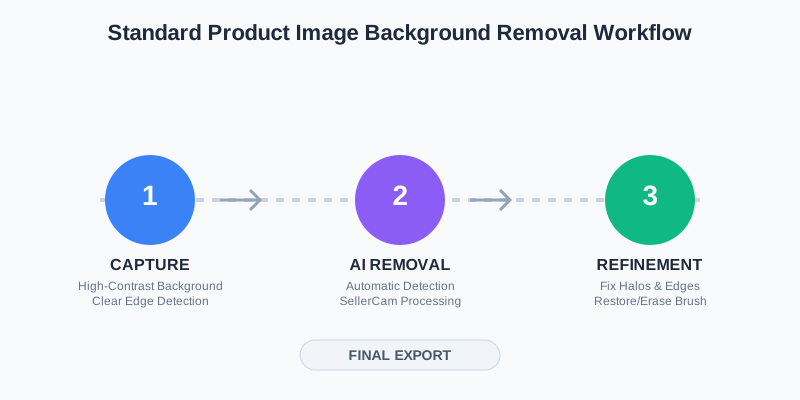
Step 1: Capture with the End in Mind
Don't just snap a photo on your messy desk. Use a high-contrast background. If your product is white, use a dark background. If your product is dark, use a light one. This helps the AI edge-detection algorithms work with 99.9% accuracy.
- Lighting: Use soft, diffused light to avoid harsh "hot spots."
- Stability: Use a tripod to ensure the product is perfectly sharp.
Step 2: The Removal Process
Upload your image to your chosen tool. If you are using SellerCam, the AI will automatically detect the product. For bulk operations, you can upload an entire folder and let the cloud processing handle the heavy lifting.
Step 3: Refinement and Quality Control
Check the edges. Look for "halos"—small slivers of the old background left behind. Professional tools offer a "Restore/Erase" brush to manually fix these tiny imperfections.
- Check the "Islands": Look at the spaces inside handles or between legs of furniture.
- Feathering: Ensure the edge isn't too sharp (which looks fake) or too blurry.
Deep Dive: Handling Challenging Objects
Not all products are created equal. Here is how to handle the "difficult" ones:
Glass and Transparent Items
Glassware is the ultimate test for any background removal tool. Because glass reflects and refracts its environment, simply "cutting it out" often makes it look like a grey blob.
- The Pro Trick: Use a tool that supports "Alpha Channel" transparency. This allows the background to show through the glass while keeping the reflections intact.
Hair, Fur, and Soft Edges
If you are selling plush toys or faux-fur coats, standard clipping paths will make them look like they were cut out with jagged scissors.
- The AI Solution: Modern AI uses "Matting" techniques that calculate the transparency of individual pixels on the edge, preserving the softness of the fur.
Jewelry and High-Reflectivity
Jewelry requires extreme precision. The "Pen Tool" in Photoshop is often the only way to get the razor-sharp edges required for luxury branding, though AI is catching up rapidly in this sector.
Advanced Techniques: Beyond Simple White Backgrounds
Once you have removed the background, don't stop at just a white box. Modern e-commerce requires "Lifestyle" imagery to convert hesitant buyers.
- The Ghost Mannequin Effect: For clothing, you can remove the background and the mannequin, leaving just the 3D shape of the garment. This gives a premium, "hollow" look that highlights the fit.
- Shadow Injection: Adding a subtle drop shadow or reflection shadow makes the product feel grounded. Without a shadow, the product looks like it's floating in space, which can subconsciously signal "low quality" to a buyer.
- AI Scene Generation: Tools can now take your "cutout" product and place it on a marble countertop or a wooden beach deck using AI. This creates a "lifestyle" shot for a fraction of the cost of a location shoot.
| Technique | Best For | Difficulty |
|---|---|---|
| Transparent PNG | Website headers and layering | Easy |
| Pure White JPG | Amazon/Marketplace listings | Easy |
| Ghost Mannequin | Apparel/Fashion | Medium |
| Lifestyle Composite | Social Media/Ads | Hard (Manual) / Easy (AI) |
Common Pitfalls to Avoid
Even with the best tools, many sellers make mistakes that hurt their sales.
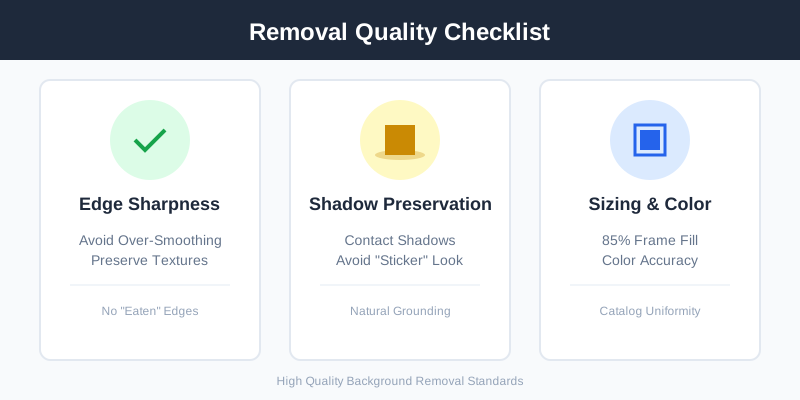
- Over-Smoothing: Some AI tools "eat" into the product edges to ensure no background is left, making them look blurry or distorted. Ensure your tool preserves the natural texture.
- Losing Shadows: A product without a shadow looks like a sticker. Always try to preserve the natural contact shadow or add a realistic one back in.
- Inconsistent Sizing: When removing backgrounds, ensure the product occupies about 85% of the frame consistently across your catalog. A "jumping" product size as customers scroll through your gallery is unprofessional.
- Color Shift: Some automated tools inadvertently change the color balance of the product while stripping the background. Always verify that your "Product Red" didn't become "Product Pink."
Frequently Asked Questions (FAQ)
Can I remove backgrounds for free?
Yes, there are many free tools like Remove.bg (for low-res) or Adobe Express. However, for high-resolution e-commerce needs, free tools often limit the output size or add watermarks.
What file format should I save as?
- Save as PNG if you need a transparent background.
- Save as JPG if you need a solid white background (this is better for loading speeds).
- Save as WebP for the best balance of quality and speed on modern websites.
Does background removal affect SEO?
Indirectly, yes. Clean images improve "Time on Page" and "Click-Through Rate" (CTR), both of which are positive signals to search engines like Google.
The SellerCam Advantage
If you are still wondering "what can I use to remove background from image," we built SellerCam specifically to solve this for people who aren't photographers.
Unlike generic tools, SellerCam allows you to use your web camera or phone to take the photo within the app, applying the background removal instantly. It’s designed for high-volume sellers who need to list 50 items in an hour, not one item in a day. It combines the precision of a desktop tool with the speed of AI.
Pro Tip: When using AI background removal, always check the "nooks" of your product—like the space between a handbag handle and the bag itself. Cheaper tools often miss these "holes," leaving bits of the original background visible. Always zoom in to 200% for a final check.
Summary: Choosing Your Path
The answer to "what can I use" depends entirely on your volume, your budget, and your skill level.
- For 1-5 photos a month: Use a free online tool or a basic mobile app. It's not worth a subscription.
- For 10-100+ photos a month: Invest in an AI-powered e-commerce tool like SellerCam. The time saved (roughly 15 minutes per photo) will pay for the tool in a single afternoon.
- For high-end magazine spreads: Hire a professional retoucher using Photoshop. Some things still require the human eye for artistic perfection.
Removing backgrounds is no longer a technical hurdle—it's a strategic choice. By choosing a tool that balances speed with professional edge detection, you free up your time to focus on what actually grows your business: sourcing great products and talking to your customers.
Ready to see the difference professional AI can make? Try SellerCam's AI camera today and transform your product photos in a single click. Don't let a messy background stand between you and your next sale.
Author

Categories
More Posts

The Ultimate Guide to Ghost Mannequin Clothing Photography for E-commerce
Master ghost mannequin photography to create professional 3D hollow-man effects for your apparel brand. Learn setup, shooting, and AI editing techniques.
The Ultimate Guide to Choosing a Product Image Editing Service for High-Volume E-commerce
Discover how to choose the right product image editing service, compare AI vs. manual retouching, and optimize your workflow for Amazon, Etsy, and Shopify.

How to Remove Background from Multiple Images: The Complete Batch Processing Guide
Master batch background removal for product photos. Learn professional techniques, compare tools, and discover how to process hundreds of images efficiently while maintaining quality.
Newsletter
Join the community
Subscribe to our newsletter for the latest news and updates