
Mastering Background Removal in Figma: A Comprehensive Guide for Designers and Sellers
Learn how to remove backgrounds from images in Figma using AI plugins, manual masking, and external tools. Compare the best methods for speed and quality.
For many designers and e-commerce entrepreneurs, Figma has evolved from a simple UI tool into a central hub for asset creation. However, one of the most common hurdles in the design workflow is dealing with distracting image backgrounds. Whether you are preparing a hero banner for a Shopify store or creating a clean social media post, knowing how to efficiently remove backgrounds within (and alongside) Figma is a non-negotiable skill.
In this guide, we will dive deep into every available method—from one-click AI plugins to precise manual masking—and explore when you should step outside Figma to use specialized tools like SellerCam for professional-grade results.
Why Background Removal Matters in Figma
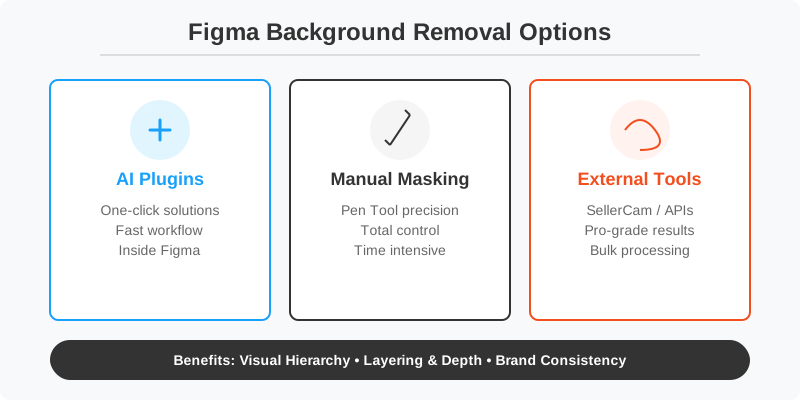
Figma isn't a raster image editor like Photoshop, yet we often use it as one. When you import a product photo, it rarely comes with the perfect transparent background. Leaving a messy background can ruin the visual hierarchy of your UI or make your product look amateurish on a digital storefront.
Clean backgrounds allow for:
- Layering and Depth: Placing products over brand colors or gradients.
- Consistency: Ensuring all product images across a grid have the same look.
- Platform Compliance: Meeting the strict "pure white background" requirements of marketplaces like Amazon.
- File Optimization: Removing unnecessary pixel data can sometimes help in reducing the visual clutter of a complex canvas.
Method 1: The One-Click AI Plugin Approach
The most popular way to handle backgrounds in Figma is through the Community ecosystem. Plugins allow you to leverage external AI processing without ever leaving your canvas.
Top Figma Plugins for Background Removal
There are dozens of plugins, but they generally fall into two categories: Free (often with limited quality or usage) and Paid (API-based).
| Plugin Name | Best For | Pricing Model | Accuracy |
|---|---|---|---|
| Remove.bg | High-speed professional work | Paid (API Key required) | Excellent |
| Icons8 Background Remover | Casual use | Free tier available | Good |
| Picsart AI | Creative designers | Subscription | Very High |
| Unsplash/Pexels | Quick mockups | Free | Moderate |
Detailed Plugin Workflow
To use these, follow these steps:
- Selection: Select the image layer on your Figma canvas.
- Launch: Press
Cmd + /(Mac) orCtrl + /(Windows) and type the name of the plugin. - Execution: Most plugins will have a "Run" or "Remove Background" button.
- Processing: The image is sent to a cloud server. Depending on your internet speed and the image size, this takes 2-10 seconds.
- Result: The plugin replaces the image fill with a new PNG containing the alpha channel.
Method 2: Manual Masking with the Pen Tool
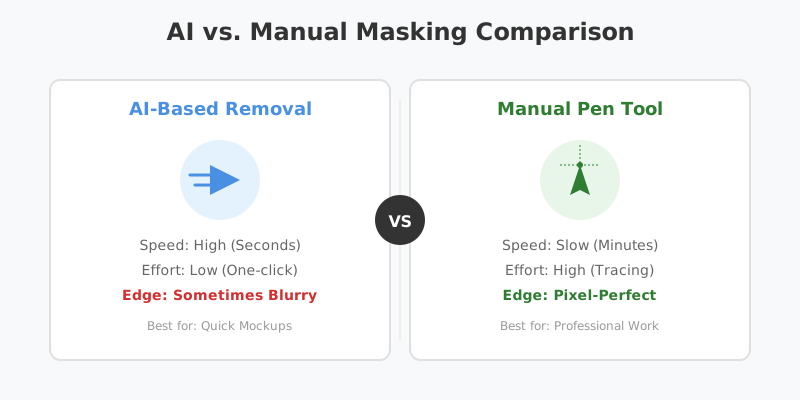
Sometimes AI fails, especially with complex edges like hair, transparent glass, or products that blend into the background colors. In these cases, Figma's native vector tools are your best friend.
The Manual Workflow
- Trace: Use the Pen Tool (P) to draw a path around your subject. Zoom in to at least 400% for accuracy.
- Curvature: Click and drag to create Bézier curves for rounded edges.
- Close the Path: Ensure the vector shape is a closed loop by clicking back on the starting point.
- Layering: Place the vector shape underneath the image in the layers panel.
- Mask: Select both the image and the shape, then click the "Use as Mask" icon (the circle in a square) in the top toolbar.
While this method is time-consuming, it offers the highest level of control for professional designers who need pixel-perfect edges that AI might over-smooth.
Method 3: Advanced Techniques - Using Image Adjustments
Before or after removing a background, you might need to "pre-process" the image to help the AI or your own eyes see the edges better.
The "High Contrast" Trick
If an AI plugin is struggling to find the edges of a white product on a light gray background:
- Duplicate the image.
- Go to the Image settings in the Fill panel.
- Crank up the Contrast and Exposure until the edges are clearly defined.
- Run the AI plugin on this "high-contrast" version.
- Once the background is removed, copy the resulting mask or PNG properties back to your original, high-quality image.
Method 4: When Figma Isn't Enough (The Professional Pivot)
While Figma plugins are convenient, they often compress your images or struggle with high-resolution e-commerce photography. If you are preparing images for a live store, the "one-click" plugin might leave jagged edges or "halos" around your product.
This is where specialized tools like SellerCam bridge the gap. Unlike generic plugins, SellerCam is optimized specifically for product photography. It doesn't just remove the background; it enhances the lighting and ensures the subject remains sharp—something Figma's raster engine often struggles with.
Why External Tools Win for Sellers
- Resolution Retention: Many Figma plugins downscale your image to 0.25 megapixels on free tiers. External tools maintain 4K resolution.
- Edge Refinement: Professional tools use specialized models for "fur" or "fine mesh," which generic AI often deletes.
- Shadow Preservation: A floating product looks fake. Professional tools can isolate the "contact shadow" and keep it transparent.
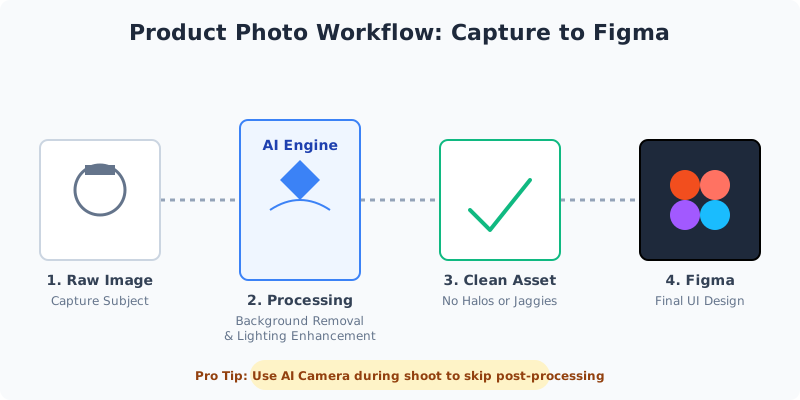
Pro Tip: If you are shooting products yourself, don't wait until you get to Figma. Using SellerCam's AI camera during the shoot can automatically strip the background as you take the photo, saving hours of post-processing time.
Step-by-Step: Processing Workflow for E-commerce
To maximize efficiency, you should follow a structured workflow. Most beginners make the mistake of trying to "fix" a bad photo in Figma, rather than starting with a clean asset.
Comparison of Workflow Efficiency
| Step | Figma Plugin | Manual Masking | SellerCam AI |
|---|---|---|---|
| Setup Time | 30s (Install) | 0s | 10s (Web) |
| Processing Time | 5-10s per image | 5-15 mins per image | 3s per image |
| Batch Support | Limited | None | High (Bulk Upload) |
| Output Quality | Compressed | Original | High-Res Enhanced |
Common Challenges and Solutions
1. The "Halo" Effect
When removing a background from a dark object on a light background, a thin white line often remains.
- Figma Fix: Use the "Inner Shadow" effect on the masked image. Set the color to the product's edge color, blur to 1-2px, and set the spread to a negative value to "choke" the white line.
2. Low Resolution Results
Figma is a vector-first tool. When you import a 20MB photo, Figma often downscales it to improve performance.
- Solution: Use a dedicated background remover before importing into Figma. This ensures you are working with a clean, high-res PNG from the start.
3. Complex Transparency (Glass/Water)
AI often removes the glass along with the background.
- Solution: This requires a "Double Mask" technique. One layer for the solid parts of the object (AI-generated) and another layer with a lower opacity or "Screen" blend mode to represent the glass reflections.
Platform Standards: Why "Transparent" Isn't Always Better
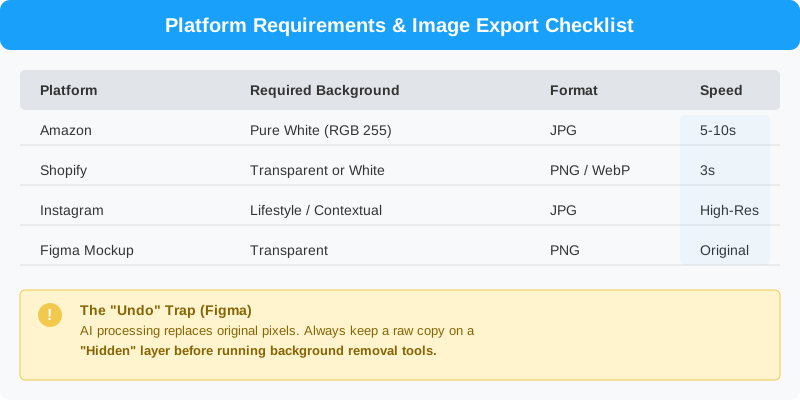
While Figma users love transparency for UI design, e-commerce platforms have different rules. If your goal is selling, you need to know which background to apply after the removal.
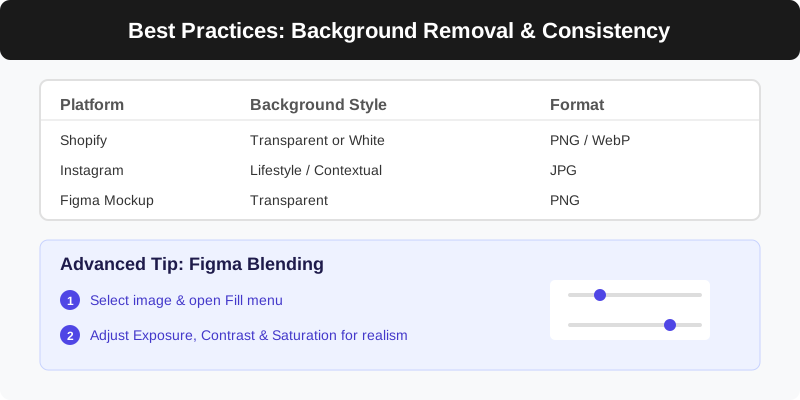
| Platform | Required Background | Recommended Format |
|---|---|---|
| Amazon | Pure White (RGB 255) | JPG |
| Shopify | Transparent or White | PNG / WebP |
| Lifestyle / Contextual | JPG | |
| Figma Mockup | Transparent | PNG |
Case Study: Creating a Hero Banner
Let's look at how a professional designer uses these techniques for a brand launch.
The Task: Create a hero banner for a new sneaker brand.
- Source: The designer receives a raw photo of the sneaker taken in a warehouse.
- Initial Removal: Instead of a Figma plugin, they use an external AI tool to ensure the fine stitching details aren't lost.
- Import to Figma: The clean PNG is brought into Figma.
- Shadow Work: The designer adds a "Drop Shadow" in Figma, but sets the Y-offset very low and the Blur very high to simulate a natural floor shadow.
- Color Grading: Using Figma's "Exposure" and "Saturation" sliders, the sneaker's colors are tweaked to match the brand's neon palette.
- Final Export: The entire frame is exported as a 2x WebP for the website.
Frequently Asked Questions (FAQ)
Can I remove backgrounds in Figma for free?
Yes, plugins like "Icons8" offer a free tier. Additionally, the manual Pen Tool method is always free, though it requires more skill and time.
Does Figma have a native "Magic Wand" tool?
No. Unlike Photoshop, Figma does not have a native pixel-selection tool. You must rely on vector masks or third-party plugins.
Why does my image look blurry after using a plugin?
Most free plugins use heavy compression to save on server costs. For high-quality results, use a paid API or a dedicated professional tool like SellerCam.
How do I undo a background removal?
If you used a plugin that replaced the image fill, you must use Cmd + Z. If you used a Mask, you can simply right-click the layer and select "Outline Mask" or delete the vector shape to restore the full image view.
Advanced Tip: Using Figma's "Photo Filter" for Better Blending
After you remove the background using a plugin or SellerCam, the subject might look "pasted on" because the lighting doesn't match your Figma canvas.
- Select the image.
- Go to the Fill section in the right sidebar.
- Click the image thumbnail to open the edit menu.
- Adjust Exposure, Contrast, and Saturation slightly to help the product blend into your design's environment.
- Temperature Adjustment: If your background is a "warm" sunset, move the temperature slider toward the yellow/orange side so the product reflects that environment.
Conclusion: Choosing Your Best Tool
Figma is a powerhouse for layout, but its background removal capabilities are only as good as the plugins you choose. For quick UI mockups, a standard plugin like Icons8 or Remove.bg is sufficient. However, for e-commerce sellers who need high-resolution, platform-ready images that actually convert, a dedicated tool like SellerCam provides the professional edge that generic AI often misses.
By mastering both the quick AI methods and the precise manual techniques, you ensure that your designs always look polished, professional, and ready for the market.
Ready to upgrade your product photos beyond what a simple plugin can do? Try SellerCam's AI camera today and see the difference in professional-grade background removal.
Author

Categories
More Posts

How to Remove Background from Image Using AI: The Definitive Guide for E-commerce
Master the art of AI background removal. Learn how to transform cluttered product shots into professional, marketplace-ready images in seconds using advanced AI tools.

Mastering Amazon Product Image Editing: The Ultimate Guide to High-Conversion Visuals
Learn the essential techniques for Amazon product image editing. From technical compliance to AI-powered background removal, discover how to boost your sales with professional visuals.

The Ultimate Guide to Amazon Photo Editing Software: High-Converting Images Without the Complexity
Discover the best Amazon photo editing software and AI tools to meet strict image requirements, boost click-through rates, and scale your ecommerce business efficiently.
Newsletter
Join the community
Subscribe to our newsletter for the latest news and updates