How to Remove Background from Image on PowerPoint: The Complete Guide for Sellers
Master the art of background removal in PowerPoint. Learn step-by-step techniques, compare built-in tools with AI alternatives, and optimize your product photos.
You are building a pitch deck, a product catalog, or a quick social media post, and you realize your product photo has a distracting, messy background. You don't have Photoshop installed, and you don't have time to learn complex editing software. This is where the "Remove Background" feature in Microsoft PowerPoint becomes a surprisingly powerful ally for e-commerce sellers and presenters alike.
While PowerPoint is primarily known for slides, its image manipulation engine has evolved significantly. However, knowing how to use it effectively—and knowing when it’s better to switch to a dedicated AI tool like SellerCam—can save you hours of frustration.
Why Use PowerPoint for Background Removal?
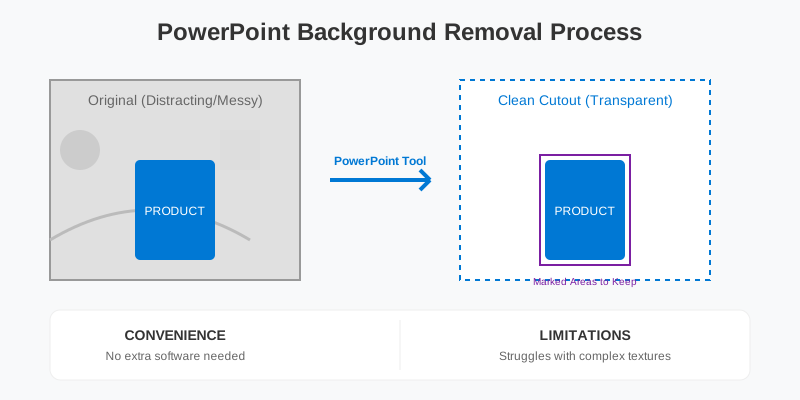
For many small business owners and Amazon sellers, PowerPoint is already a part of their daily workflow. It offers a "good enough" solution for simple shapes and high-contrast images.
The primary advantage is convenience. You are already in the app, there is no additional cost, and it allows for immediate layering of text and graphics over your newly cleaned image. But as we will explore, "convenience" sometimes comes at the cost of "quality," especially when dealing with complex textures like hair, fur, or transparent glass.
Comparing PowerPoint to Professional Alternatives
Before we dive into the "how-to," let's look at where PowerPoint stands in the hierarchy of image editing tools.
| Feature | PowerPoint (Built-in) | Adobe Photoshop | SellerCam (AI) |
|---|---|---|---|
| Ease of Use | High (Drag & Drop) | Low (Steep Curve) | High (One-click) |
| Edge Precision | Moderate/Manual | Extremely High | High/Automatic |
| Batch Processing | No | Yes (Actions) | Yes (Cloud-based) |
| Real-time Preview | Yes | Yes | Yes |
| Cost | Included in Office | Monthly Subscription | Free/Pay-per-use |
Step-by-Step: How to Remove Background in PowerPoint
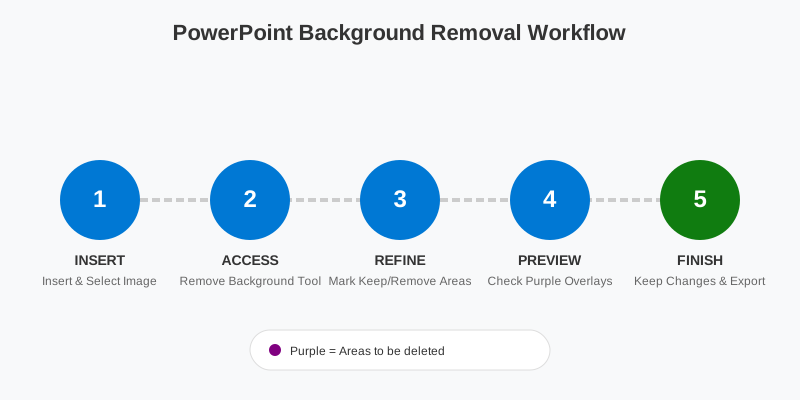
The process in PowerPoint is semi-automated. The software tries to guess what the background is, and then you "assist" it by marking areas to keep or discard.
Step 1: Insert and Select Your Image
Open your PowerPoint slide and go to Insert > Pictures. Once the image is on the slide, click it to activate the Picture Format tab in the top ribbon. Ensure your image is of high resolution; working with pixelated images makes the background detection algorithm significantly less accurate.
Step 2: Access the Background Removal Tool
On the far left of the Picture Format ribbon, you will see the Remove Background button. Click it. PowerPoint will immediately turn parts of your image purple. The purple areas represent what the software intends to delete. If your object is also purple, don't panic—this is just the initial AI guess.
Step 3: Refine the Selection
Rarely does the automatic tool get it perfect on the first try. You will see two main tools in the "Refinement" group:
- Mark Areas to Keep: Use the pencil tool to draw lines over parts of the product that turned purple but should stay. You don't need to color the whole area; usually, a single strike through the missing part tells the AI to recalculate that specific color range.
- Mark Areas to Remove: Draw over distracting background elements that the AI missed, such as shadows between a product's legs or reflections on a surface.
Step 4: Finalize and Export
Once you are satisfied, click Keep Changes. To use this image outside of PowerPoint, right-click the image and select Save as Picture. Ensure you select PNG as the file format to maintain the transparency. If you save it as a JPG, the background will default to solid white or black, destroying the transparency effect.
Deep Dive: Advanced Techniques for Complex Objects
When dealing with more complex items like a bicycle with many spokes or a model with flowing hair, the standard "Mark Areas" tool can feel like using a blunt crayon. Here are some advanced strategies to improve your results:
The "Zoom and Dot" Strategy
Instead of drawing long lines with the refinement tool, try zooming in to 400% and placing small dots. PowerPoint's algorithm often performs better when you identify specific pixel clusters rather than broad strokes, which can sometimes lead to "bleeding" where the tool accidentally includes unwanted background colors.
Utilizing the "Soft Edges" Effect
After you have removed the background, the edges can often look "crunchy" or jagged. To fix this:
- Select the image.
- Go to Picture Effects > Soft Edges.
- Choose the 1 Point or 2.5 Point setting. This subtle blur helps the product blend more naturally into its new environment, masking the imperfections of the manual cutout.
Use Cases: When to Choose PowerPoint vs. Other Tools
Use PowerPoint When:
- You are creating internal training documents.
- You need a quick mockup for a brainstorming session.
- The image has very high contrast (e.g., a black camera on a white desk).
- You only have one or two images to process.
Avoid PowerPoint When:
- Hair and Fur: PowerPoint almost always fails at fine strands, leaving a "helmet" effect around the subject.
- Translucency: If you are selling glassware or items with mesh, PowerPoint cannot handle partial transparency.
- High Volume: If you have 50 product photos for a new collection launch, manual clicking in PowerPoint will take hours.
- Amazon Main Images: Amazon's "Pure White" requirement is strict. PowerPoint's manual edges often leave "halos" that can lead to listing suppression.
When PowerPoint Fails: The "Purple Ghost" Problem
While the tool is handy, it struggles with "low-frequency" edges—areas where the product color is similar to the background. If you are selling a white mug on a light grey table, PowerPoint will likely eat into the mug itself, creating jagged, unprofessional edges.
For e-commerce, where image quality directly correlates to conversion rates, "good enough" often isn't. This is where dedicated AI tools leapfrog traditional office software.
The difference between a manual PowerPoint cutout and an AI-driven background removal is often found in the "micro-edges." AI, like that used in SellerCam, understands the context of the object. It knows that a thread of hair or a shadow on a product belongs to the foreground, whereas PowerPoint treats pixels purely based on color clusters.
Technical Requirements for Major Platforms
If your goal is to remove backgrounds for an online store, you must adhere to specific platform standards. Simply removing the background isn't enough; you often need to replace it with a specific hex code or RGB value.
| Platform | Background Standard | Image Format | Recommended DPI |
|---|---|---|---|
| Amazon | Pure White (RGB 255, 255, 255) | TIFF, JPEG, GIF, or PNG | 300 |
| eBay | Solid White or Light Grey | JPEG, PNG | 72-96 |
| Shopify | Transparent or Consistent Brand Color | PNG, WebP | 72 |
| Etsy | Neutral/Minimalist Preferred | JPEG, PNG | 72 |
PowerPoint defaults to a transparent background when you "Keep Changes," but it doesn't automatically add the "Pure White" layer required by Amazon. You would need to manually insert a white square behind your image, which adds another layer of manual labor and potential for error.
Pro Tips for Better Background Removal in PowerPoint
To get the most out of PowerPoint's limited engine, follow these "pre-production" tips:
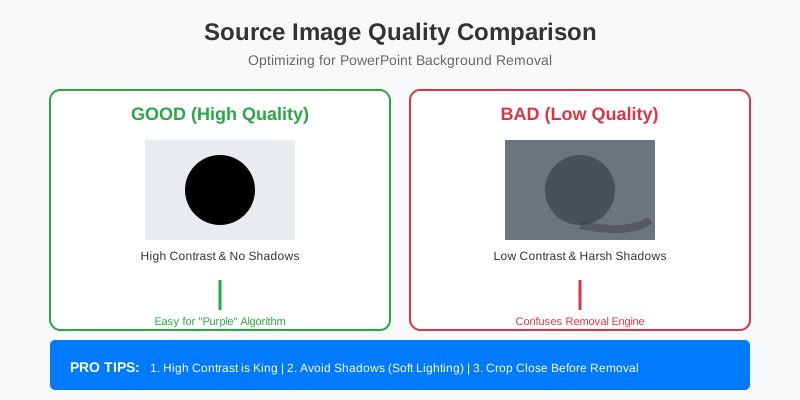
- High Contrast is King: Shoot your product against a background that is the opposite color of the item (e.g., a dark product on a light background).
- Avoid Shadows: Shadows confuse the PowerPoint "Purple" algorithm. Use soft, diffused lighting. If a shadow is cast on the background, PowerPoint will often think it's part of the product.
- Crop First: Before clicking "Remove Background," crop the image as close to the object as possible. This gives the software fewer pixels to analyze, increasing its accuracy and speed.
- Brightness/Contrast Adjustment: Sometimes, temporarily increasing the contrast of the image before using the background removal tool helps the AI see the edges better. You can reset the contrast once the background is gone.
Pro Tip: If you find yourself spending more than 2 minutes "Marking Areas to Keep" in PowerPoint, you are losing money. Your time as a seller is better spent on marketing or sourcing. Switch to an AI tool that handles the edge detection automatically.
Integrating SellerCam for Professional Results
If you find the PowerPoint process tedious, SellerCam's AI Background Removal offers a "one-click" alternative that is specifically tuned for products.
Unlike PowerPoint, which is a generalist tool, SellerCam is built for the "Ghost Mannequin" effect and high-end product photography. It doesn't just remove the background; it optimizes the product itself, ensuring the lighting looks natural even after the original environment is gone.
The SellerCam Advantage for PPT Users
If you still need your images in PowerPoint for a presentation, you can use SellerCam to do the "heavy lifting" (the removal), and then simply drag the perfect PNG into your slides. This gives you the professional edge of AI with the layout flexibility of PowerPoint.
Batch Processing: The Ultimate Time Saver
One of the biggest limitations of PowerPoint is the lack of batch processing. If you have a folder of 100 images, you have to open each one, click remove background, and manually fix the edges 100 times. With SellerCam, you can upload the entire folder, and the AI processes them simultaneously in the cloud, delivering consistent results across your entire catalog in seconds.

Frequently Asked Questions
Can I remove the background in PowerPoint Online? Yes, but the features are more limited than the desktop version. The desktop app provides much better "Mark Areas" control and higher resolution export options.
Why is my image blurry after removing the background?
PowerPoint often compresses images upon import to save file size. To fix this, go to File > Options > Advanced and check "Do not compress images in file." This ensures your product remains crisp for e-commerce use.
What is the best format to save my cutout? Always save as PNG. If you save as a JPEG, the transparency you just worked so hard to create will be filled in with a solid color (usually white or black) because JPEG does not support alpha channels (transparency).
Does PowerPoint support removing backgrounds from videos? No, the "Remove Background" tool is strictly for static images. For video background removal, you would need tools like Adobe After Effects or specialized AI video editors.
How do I handle reflections on a product? Reflections are tricky for PowerPoint. It often sees a reflection of the table on a shiny product as "background." You will likely need to use the "Mark Areas to Keep" tool extensively to prevent the AI from cutting holes in your shiny surfaces.
Summary: Choosing the Right Tool for the Job
PowerPoint is a fantastic "emergency" tool. It’s perfect for internal presentations, school projects, or rough drafts of social media posts. However, for professional e-commerce listings where the "zoom" feature will reveal every jagged edge, it often falls short.
For sellers, the visual quality of a product is the single most important factor in building trust. A poorly cut-out image with jagged edges suggests a lack of professionalism, which can drive potential customers away.
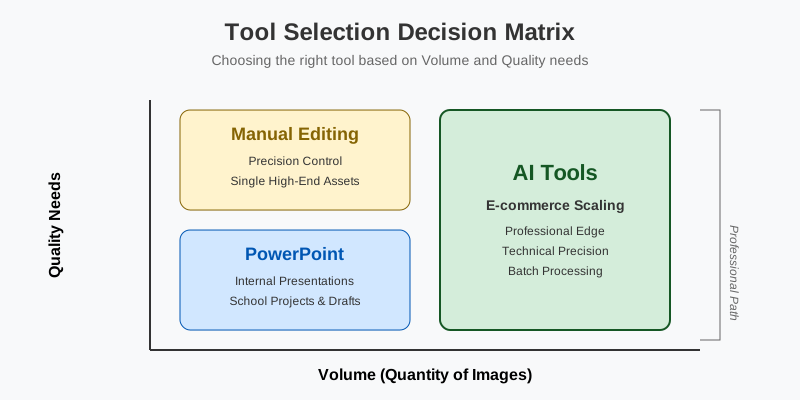
For those looking to scale their business, the path is clear: use PowerPoint for the slides, but use SellerCam for the photos. By combining the layout power of Microsoft with the technical precision of AI, you can create listings that don't just look "removed"—they look professional.
Final Checklist Before You Publish:
- Check the Edges: Zoom in to 200%. Are there any purple bits left or chunks of the product missing?
- Verify Transparency: Place a bright colored square behind your image to see if any "ghost" pixels remain from the old background.
- Check File Size: Ensure the exported PNG isn't too large for your website's loading speed.
- Consistency: Do all your product photos have the same background style? Consistency is key for brand identity.
Ready to upgrade your product photos without the manual purple-pencil struggle? Try SellerCam's AI camera and background remover today →
Author

Categories
More Posts

The Ultimate Guide to Remove Background from Image HD: Professional Secrets for E-commerce
Master the art of high-definition background removal. Learn how to maintain edge sharpess, handle complex textures, and use AI to generate studio-quality HD product images.

How AI is Revolutionizing Content Creation: From Thumbnails to Demo Videos
In 2025, AI doesn't just write text—it's generating entire visual workflows. Discover how tools like Veo 3, Runway Gen-4, and Kling are transforming content creation for creators and marketers.

The Ultimate Guide to Clothing Photography: Mastering the Ghost Mannequin Effect
Learn how to achieve the professional ghost mannequin effect for your clothing brand. A deep dive into photography techniques, post-processing, and AI tools.
Newsletter
Join the community
Subscribe to our newsletter for the latest news and updates