
How to Remove Background from Image in Google Slides: The Ultimate Professional Guide
Master background removal in Google Slides using built-in AI tools, third-party add-ons, and professional AI cameras to create stunning presentations.
We've all been there: you're building a high-stakes presentation in Google Slides, you find the perfect product photo or team headshot, but the cluttered, distracting background ruins the entire aesthetic. A messy background doesn't just look unprofessional; it actively competes with your message, making your slides harder to read and less impactful.
While Google Slides isn't a dedicated photo editor like Photoshop, the ecosystem has evolved significantly. Whether you are using the new built-in Gemini AI features, third-party Workspace add-ons, or professional-grade external tools like SellerCam, you can achieve a "cutout" look without ever leaving your browser.
In this comprehensive guide, we'll explore every method to remove backgrounds from images in Google Slides, from the basic "masking" hacks to advanced AI-powered automation.
The Evolution of Background Removal in Google Workspace
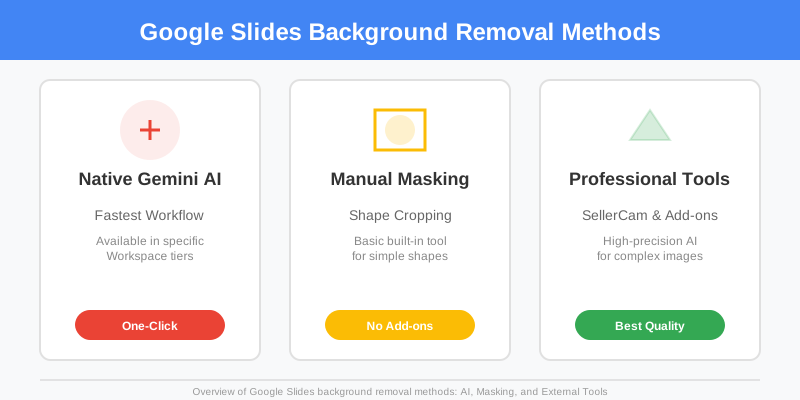
For years, Google Slides users had to rely on a workaround called "Masking" (cropping into shapes) or use external websites. However, Google recently introduced native background removal for specific Workspace tiers.
Understanding which tool to use depends on your specific needs: are you making a quick internal deck, or are you preparing a product catalog for an e-commerce pitch? The requirements for precision vary wildly. For instance, a simple headshot for a "Meet the Team" slide might only require a basic circular crop, whereas a high-end jewelry piece for a sales deck requires pixel-perfect transparency to maintain its luster against a dark slide theme.
Comparison of Native vs. External Background Removal
| Feature | Native Google Slides (AI) | Third-Party Add-ons | Professional AI Tools (SellerCam) |
|---|---|---|---|
| Ease of Use | High (Built-in) | Medium (Requires Install) | High (Web-based) |
| Edge Precision | Moderate (Struggles with hair/fur) | Variable | High (Designed for E-commerce) |
| Batch Processing | No | Sometimes | Yes |
| Cost | Part of Workspace/Gemini | Free/Freemium | Free to Start |
| Output Quality | 72 DPI (Standard) | Standard | High Definition / Print Ready |
Method 1: Using the Native "Remove Background" Feature
If you are a Google Workspace subscriber (Business Standard, Plus, or Enterprise) or have a Google One AI Premium plan, you may have access to the native background removal tool. This is the fastest way to clean up an image without leaving the tab.
The Step-by-Step Workflow
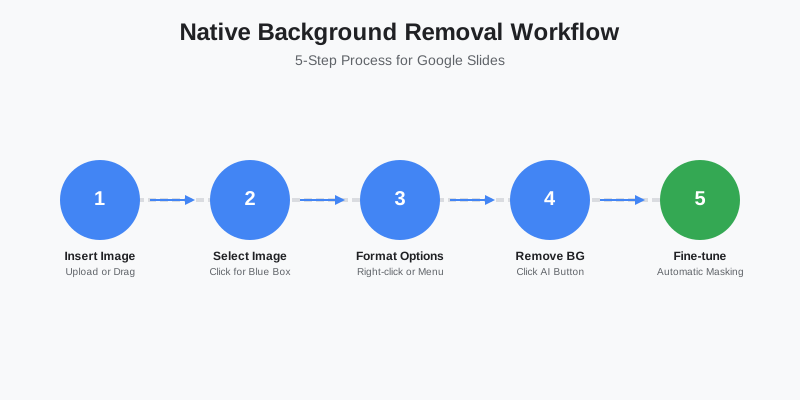
- Insert your Image: Click
Insert>Image>Upload from computeror drag and drop your file directly onto the slide canvas. - Select the Image: Click on the picture so the blue bounding box appears. This activates the image-specific tools in the toolbar.
- Access Format Options: Right-click the image and select
Format options, or clickFormatin the top menu bar. A sidebar will appear on the right side of your screen. - Click Remove Background: Look for the "Image adjustments" or "Edit Image" section. If your account is eligible, you will see a "Remove background" button.
- Fine-tune: Google's AI will automatically detect the subject and mask the rest. Note that this process is non-destructive; you can usually reset the image if the AI cuts off too much.
Method 2: The "Masking" Hack (For Simple Shapes)
If you don't have the AI feature, the oldest trick in the book is "Masking." This doesn't technically remove the background pixel-by-pixel, but it hides the background by placing the image inside a shape. This is a favorite for designers creating minimalist layouts.
When to Use Masking
- Team Slides: Putting employee photos into uniform circles.
- Testimonials: Placing customer logos into rounded rectangles.
- Feature Callouts: Using hexagonal masks for a tech-forward look.
Detailed Steps:
- Select your image: Click the image you want to modify.
- Locate the Mask Tool: Don't click the Crop icon itself. Instead, click the small downward arrow right next to the Crop icon in the top toolbar.
- Choose a Shape: A dropdown menu with Categories (Shapes, Arrows, Callouts, Equation) will appear. Select a shape (e.g., an Oval).
- Adjust the Crop: The image will be "clipped" into that shape. To adjust the positioning, double-click the image. You can now drag the image inside the shape or resize the shape handles to change the framing.
Method 3: Professional AI Removal for E-commerce Slides
If you are using Google Slides to create a product pitch, a wholesale catalog, or an Amazon storefront preview, "good enough" isn't enough. Native tools often leave jagged edges around complex products like jewelry, electronics, or apparel. Furthermore, native tools often struggle with "semi-transparent" areas like glass or fine lace.
This is where specialized tools like SellerCam come in. Instead of struggling with manual sliders, SellerCam uses a dedicated vision model trained on millions of commercial product photos.
Why Professionals Use External AI Over Built-in Tools
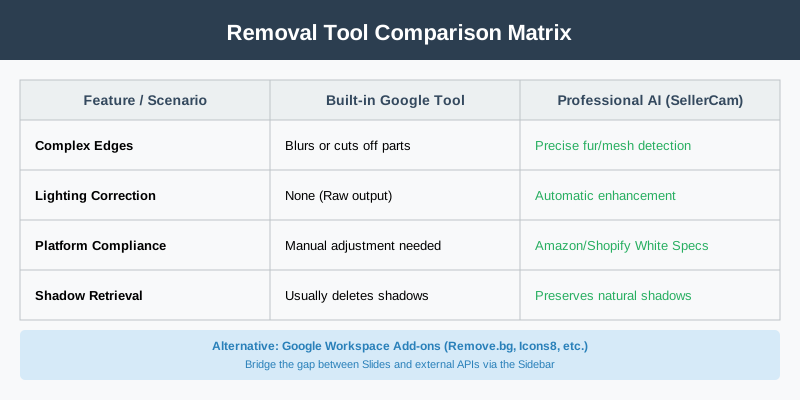
| Scenario | Built-in Google Tool | SellerCam AI |
|---|---|---|
| Complex Edges | Often blurs or cuts off parts | Precise edge detection for fur/mesh |
| Lighting Correction | None | Automatic enhancement |
| Platform Compliance | No | Meets Amazon/Shopify White Background specs |
| Shadow Retrieval | Usually deletes shadows | Can preserve or generate natural shadows |
Advanced Use Case: The "Floating" Product Effect
To make a product look like it's floating on your slide:
- Use SellerCam to remove the background and add a soft drop shadow.
- Export as a transparent PNG.
- Import into Google Slides and place it over a gradient background. The pre-rendered shadow from SellerCam will look much more realistic than the basic "Drop Shadow" effect built into Slides.
Method 4: Google Workspace Add-ons
The Google Workspace Marketplace offers several "Background Remover" add-ons. These act as a bridge between Slides and external APIs, allowing you to process images without downloading and re-uploading.
Top Rated Add-ons:
- Remove.bg for Slides: The industry standard for speed, though it requires an API key and operates on a credit system.
- Background Remover for Images: A free-to-use alternative that works well for high-contrast photos.
- Icons8 Background Remover: Excellent for maintaining high resolution in the final output.
How to Install and Use:
- Go to
Extensions>Add-ons>Get add-ons. - Search for "Background Remover" and click Install.
- Once installed, go back to
Extensions, find the app name, and clickStart. - Select your image on the slide and click the "Remove Background" button in the sidebar that appears.
Advanced Tips for Difficult Backgrounds
Sometimes, an image is just "stubborn." Here are professional techniques to handle difficult scenarios:
Dealing with "Busy" Backgrounds
If your subject is standing in front of a crowded bookshelf or a forest, AI might get confused.
- Tip: Before uploading to a background remover, use the basic "Crop" tool in Google Slides to cut out as much of the background as possible, leaving only a small margin around the subject. This "focuses" the AI on the correct area.
Fixing "Color Bleed"
When you remove a bright green background, sometimes a tiny green "halo" remains on the subject.
- Tip: In Google Slides, go to
Format options>Adjustments. Slightly increase the Contrast and decrease the Brightness. This can sometimes sharpen the edges and make the color bleed less noticeable.
Creating a "Sticker" Look
If the background removal isn't 100% perfect, you can hide the imperfections by creating a sticker effect.
- Remove the background.
- Go to
Format options>Drop Shadow. - Set the Transparency to 0%, the Blur Radius to 0, and the Distance to a small number (like 3-5).
- Change the shadow color to white. This creates a solid white border around your cutout, making it look like a deliberate design choice.
Best Practices for High-Quality Cutouts
To get the best results—regardless of the tool you use—the quality of your original photo is paramount. You can't turn a blurry, low-light photo into a professional cutout easily.
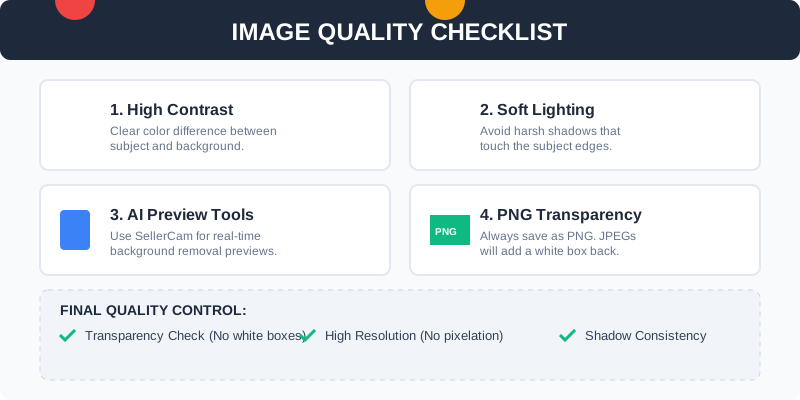
1. Contrast is King
The AI looks for the difference in color and brightness between the subject and the background. A red apple on a green background is easy; a white sneaker on a light grey floor is a nightmare for most algorithms. If you are shooting your own photos, try to use a background color that is the opposite of your subject.
2. Mind the Lighting
Harsh shadows that touch the edges of your subject can confuse the AI, causing it to "eat" into your product or include a chunk of the shadow as part of the object. Use soft, diffused lighting whenever possible.
3. Use a Professional Camera Tool
If you are taking photos specifically for a presentation, don't just use your default phone camera. Tools like SellerCam allow you to shoot with a real-time AI preview, showing you exactly how the background will be removed before you even snap the shutter. This saves hours of post-processing time.
Pro Tip: When using Google Slides, always use PNG files with transparency. If you remove a background in an external tool, save it as a PNG. JPEGs do not support transparency and will add a white box back around your image!
Checklists for a Perfect Presentation
Before you finalize your slides, go through this quality control checklist to ensure your images look integrated, not just "pasted on."
| Checkpoint | Action |
|---|---|
| Transparency | Ensure no "white corners" remain around the subject. |
| Resolution | Zoom in to 200%. Are the edges pixelated? If so, use a higher-res source. |
| Consistency | Do all images share the same lighting direction? Flip images horizontally if needed. |
| File Size | Compress your PNGs using a tool like TinyPNG so the Google Slide deck doesn't lag. |
| Edge Smoothness | Check for "staircase" edges. If found, re-run through a high-quality AI remover. |
Common Troubleshooting FAQ
Q: Why is the "Remove Background" button greyed out in my Google Slides? A: This feature is currently limited to specific Google Workspace tiers (Business, Enterprise, Education) and Google One AI Premium subscribers. It is also rolling out gradually, so it may not be available in all regions yet.
Q: My image looks blurry after removing the background. How do I fix it? A: Most free background removers downscale your image to 0.25 megapixels (standard definition). To keep your images sharp on large presentation screens, use a professional tool like SellerCam or the paid version of Remove.bg which supports HD exports.
Q: Can I remove the background of a GIF in Google Slides? A: No, Google Slides' native tools and most add-ons only support static images (JPG, PNG). To remove a background from a GIF, you would need to use an external tool like Unscreen before importing it.
Q: How do I remove the background from a shape or a text box? A: Select the shape/text box, click the "Fill color" (paint bucket) icon in the toolbar, and select "Transparent."
Why SellerCam is the Secret Weapon for Sellers
If you’re a professional seller, you aren't just making a slide; you're making a sale. Google Slides' native tools are built for students and office workers. SellerCam is built for the "Ghost Mannequin" effect, the "Pure White Background" requirement of Amazon, and the "Lifestyle" aesthetic of Instagram.
By using the SellerCam AI Background Removal tool, you can:
- Shoot & Remove: Use the mobile-ready camera to snap a photo and have the background gone in seconds.
- Batch Process: Do 50 products at once and import them into your Google Slides catalog. This is a massive time-saver for seasonal line sheets.
- Enhance: Automatically fix the white balance and exposure so your products pop against the slide background.
- Consistency: Ensure every product in your presentation has the exact same scale and margin, giving your deck a high-end, "Apple-style" look.
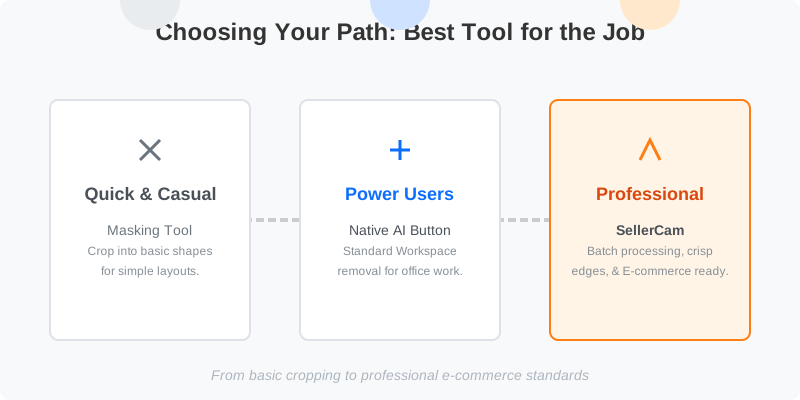
Summary: Choosing Your Path
Removing a background in Google Slides doesn't have to be a chore. The right method depends entirely on your output goals:
- For quick, casual slides: Use the Masking tool to crop images into circles or squares. It's fast, free, and requires no AI.
- For Workspace Power Users: Utilize the Native AI Remove Background button if available in your plan. It’s the most convenient "one-click" solution.
- For High-Stakes Presentations & E-commerce: Use SellerCam. When your reputation or a sale is on the line, you need the crisp edges, HD resolution, and professional lighting adjustments that only a dedicated AI photography tool can provide.
Ready to upgrade your product photos for your next big presentation? Try SellerCam's AI camera today and see the difference professional AI can make. Don't let a messy background distract from your brilliant ideas—clean it up and let your content shine.
Author

Categories
More Posts

Mastering Amazon Product Image Editing: The Ultimate Guide to High-Conversion Visuals
Learn the essential techniques for Amazon product image editing. From technical compliance to AI-powered background removal, discover how to boost your sales with professional visuals.

Choosing the Right Amazon Product Image Editing Service: A Strategic Guide
Discover how to choose an Amazon product image editing service that boosts conversions, meets platform requirements, and scales with your brand.

Best Photo Editing Software for eBay Sellers: From Professional Suites to AI Automations
Discover the best photo editing software for eBay. Compare professional tools, free editors, and AI-powered solutions to boost your sales and meet eBay's image requirements.
Newsletter
Join the community
Subscribe to our newsletter for the latest news and updates