
Mastering Background Removal for Product Images: The Ultimate Seller's Guide
Learn how to remove backgrounds from product images efficiently. Discover pro techniques using AI, manual tools, and platform-specific requirements to boost sales.
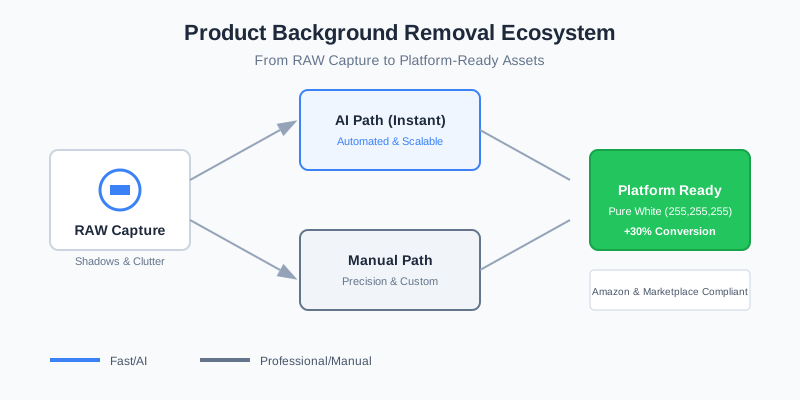
You’ve spent hours setting up your studio, adjusting the lighting, and capturing the perfect angle of your product. But when you look at the RAW files, the background is distracting. Maybe there’s a stray shadow, a slightly off-white wall, or a cluttered home office setting. This is the reality for 90% of e-commerce sellers.
The "Amazon look"—that crisp, clean, professional white background—isn't just a stylistic choice; it’s a conversion engine. High-quality product images can increase conversion rates by up to 30%. But the question remains: how do you remove backgrounds from product images without spending a fortune on professional editors or hours in Photoshop?
Why Background Removal is Non-Negotiable for E-commerce
In the digital marketplace, your image is your handshake. If the background is messy, your brand looks amateur. Beyond aesthetics, there are practical reasons why every seller needs a solid background removal strategy.
1. Platform Compliance
Most major marketplaces have strict rules. If your main image doesn't have a pure white background, Amazon might suppress your listing. This isn't just a suggestion; it's a technical requirement that affects your search visibility (SEO). When a listing is suppressed, it disappears from search results entirely, leading to an immediate drop in revenue.
| Platform | Background Requirement | Primary Image Rule |
|---|---|---|
| Amazon | Pure White (RGB 255, 255, 255) | Mandatory for main image |
| eBay | Solid White or Light Grey | Highly recommended |
| Walmart | Pure White (RGB 255, 255, 255) | Strict enforcement |
| Shopify | Transparent or Consistent White | Brand preference, but white converts best |
| Etsy | Clean, minimalist, or lifestyle | Flexible, but clutter-free is preferred |
2. Consistency Across the Catalog
When a customer scrolls through your shop, they should see a cohesive brand. Using different backgrounds for different products creates a fragmented experience. Removing the background allows you to place every product on a uniform canvas. This psychological "smoothness" builds trust, making your store look like a professional operation rather than a side-hustle.
3. File Size and Mobile Performance
A clean white or transparent background often results in smaller file sizes compared to busy, high-detail backgrounds. This means faster loading times on mobile devices, which is where over 60% of e-commerce shopping happens. In the world of web performance, every millisecond counts—faster pages lead to lower bounce rates.
The Three Main Methods of Background Removal
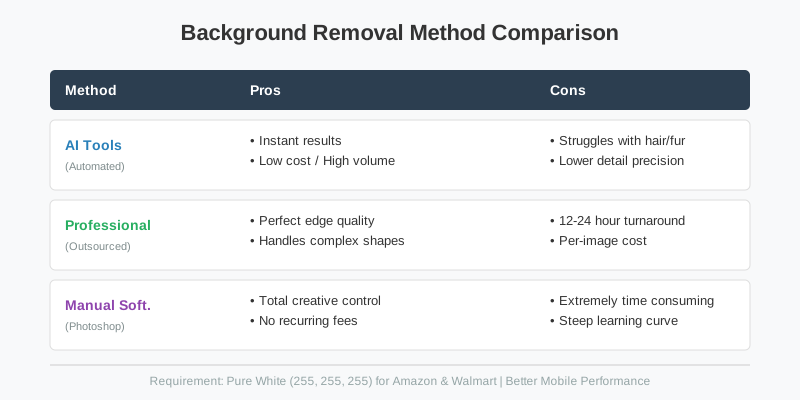
Not all removal techniques are created equal. Depending on your volume and budget, you might choose one of the following paths.
Method 1: AI-Powered Automation (The SellerCam Way)
Artificial Intelligence has revolutionized product photography. Modern AI models are trained specifically on "object-background" separation. They can identify complex edges, such as the hair on a model or the mesh of a sneaker, and mask them out in seconds.
The Workflow:
- Upload your photo: Drag and drop your RAW or JPEG files.
- AI Detection: The AI detects the foreground object using semantic segmentation.
- Masking: The background is replaced with a transparent or white layer.
- Export: You download the high-res result in PNG or JPG format.
Method 2: Manual Editing (Photoshop/GIMP)
This is the "old school" way. It involves using the Pen Tool or Lasso Tool to manually trace the outline of your product. While it offers the highest precision for extremely complex items like jewelry with many holes, it is incredibly time-consuming. A single complex image can take 15-30 minutes for a beginner to mask correctly.
Method 3: Outsourcing (Fiverr/Upwork)
If you have 500+ SKUs and a healthy budget, you can send your files to a retoucher. However, this introduces a delay in your "time-to-market." In e-commerce, being first to market with a trending product is vital. Waiting 48 hours for a freelancer to return your images can mean lost sales.
Deep Dive: How AI Handles Complex Product Edges
One of the biggest challenges in background removal is dealing with "difficult" products. Think of a glass bottle with reflections, or a lace dress. Traditional "magic wand" tools often fail here because the color of the background bleeds into the product.
| Feature | Basic Background Eraser | Advanced AI (SellerCam) |
|---|---|---|
| Fine Hair/Fur | Usually gets "chopped" off | Preserves individual strands |
| Transparency | Makes glass look solid | Maintains realistic refraction |
| Shadows | Deletes them entirely | Can preserve or generate natural shadows |
| Speed | 2-5 minutes per photo | < 5 seconds per photo |
When you use a tool like SellerCam, the AI doesn't just "delete" pixels. It understands the 3D structure of the object. This allows it to create a "Ghost Mannequin" effect for apparel or add a subtle "grounding shadow" so your product doesn't look like it's floating in space.
Case Study: The "Fuzzy" Texture Challenge
Consider a faux-fur rug or a wool sweater. Manual masking would require thousands of tiny clicks to capture the texture. AI uses "Alpha Matting" techniques to determine the transparency of every single pixel on the edge. This results in a soft, natural transition that looks realistic on any background, whether it's a website's white hero section or a colorful social media ad.
Step-by-Step: Removing Backgrounds Like a Pro
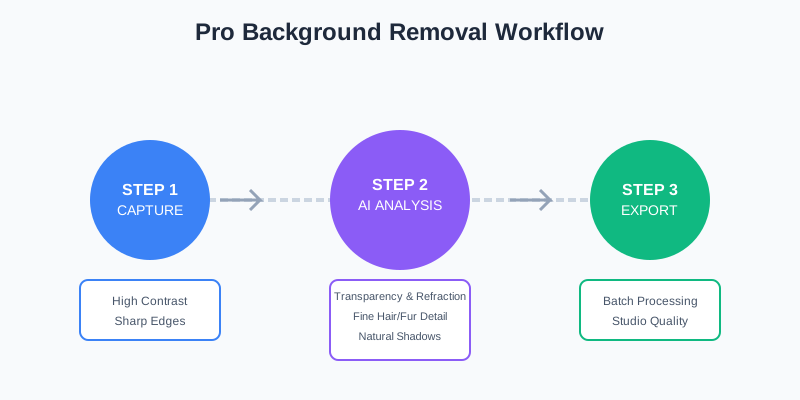
If you want to achieve studio-quality results at home, follow this optimized workflow.
Step 1: Optimize Your Capture
Even the best AI works better with a good source image. Try to use a background that contrasts with your product. If you're shooting a white sneaker, don't use a white wall—use a grey or blue one. This "color contrast" helps the AI define the edges more sharply.
- Pro Tip: Keep the product at least 3 feet away from the background to minimize "color spill" (where the background color reflects onto the product).
Step 2: Batch Processing
As a seller, your time is money. Don't process photos one by one. Use tools that allow you to drag and drop 20-50 images at once. SellerCam’s web interface is designed for this high-velocity work, allowing you to shoot directly from your phone and have the background removed before you even get back to your desk.
Step 3: Refinement and Shadows
A common mistake is leaving the product on a "flat" white background. It looks fake. To make it look professional, you need a "Contact Shadow." This is the tiny dark area where the product touches the ground. High-end AI tools can automatically generate these shadows to add depth.
- Drop Shadows: Good for flat items like electronics.
- Reflection Shadows: Excellent for luxury items like watches or perfume.
Advanced Techniques for Professional Results
1. Handling Reflective Surfaces
Reflective products like chrome appliances or glass bottles are the "final boss" of background removal. The background doesn't just sit behind them; it appears inside them.
- The Solution: Use a "Light Box" or a "Cyc Wall" to ensure the reflections are neutral. If the AI removes the background but the bottle still shows your living room in the reflection, you'll need to use a "healing brush" to clean up the internal reflections.
2. The "Ghost Mannequin" Effect
For clothing, simply removing the background isn't enough. You want the clothes to look like they are being worn without a visible model. This involves taking two photos: one of the front on a mannequin, and one of the inside (the neck area). You then "stitch" them together after removing the background. Advanced AI is increasingly able to automate this "hollow man" look.
3. Color Grading Post-Removal
Once the background is gone, your product might look a bit "flat." This is the perfect time to adjust the Levels and Saturation.
- White Balance: Ensure the whites of your product don't look yellow or blue against the pure white (255,255,255) background.
- Contrast: Increase contrast slightly to make the product "pop" against the digital canvas.
Common Pitfalls and How to Avoid Them
Even with great tools, things can go wrong. Here is a checklist of what to watch out for.
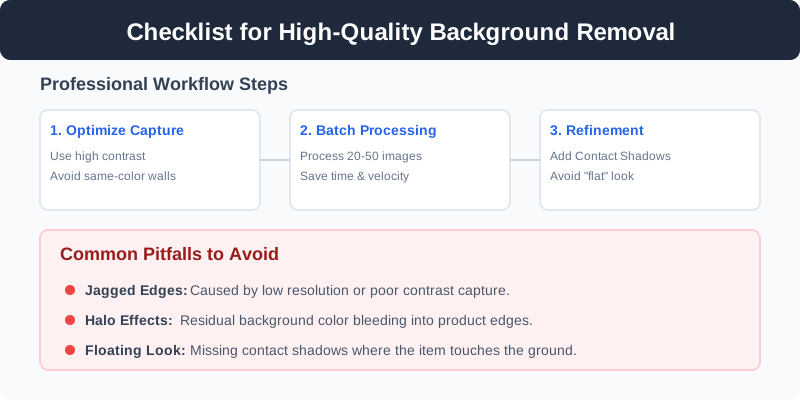
- The "Halo" Effect: This happens when a sliver of the old background remains around the edges. It’s usually caused by low-resolution source images or poor contrast.
- Jagged Edges: If the tool uses "aliased" cutting, the edges look like a staircase. Ensure your tool uses "anti-aliasing" or "feathering" to smooth the transition.
- Loss of Detail: Be careful with jewelry or intricate items. If the AI is too aggressive, it might delete the "sparkle" or thin chains. Always zoom in to 200% to check the fine details.
- Incorrect Aspect Ratio: Once the background is gone, ensure you center the product. Amazon requires the product to occupy 85% or more of the frame. Don't leave too much "dead space."
| Error Type | Visual Symptom | Fix |
|---|---|---|
| Color Bleed | Product edges have the tint of the old background | Use a neutral grey background during shooting |
| Floating Object | Product looks disconnected from the floor | Add a drop shadow or contact shadow |
| Blurry Edges | The transition to white is too soft | Increase the sharpening or use a higher-res source |
| Over-masking | Parts of the product are missing | Use a manual "restore" brush to bring back pixels |
FAQ: Frequently Asked Questions
Q: Can I remove backgrounds on my phone?
A: Yes! Apps like SellerCam allow you to take a photo and remove the background instantly using mobile-optimized AI. This is perfect for social commerce (Instagram/TikTok Shop) where speed is essential.
Q: Which file format should I use?
A: For transparent backgrounds, use PNG. For pure white backgrounds (like for Amazon), use JPG to keep the file size small.
Q: Is it better to use a green screen?
A: Not necessarily for still products. A neutral grey or white background is often better because it doesn't cause "green spill," which is very hard to remove from reflective surfaces.
Q: How do I handle 360-degree product photos?
A: 360-degree photography requires consistent background removal across 24-72 frames. You should use a batch-processing tool that can apply the same mask settings to every frame to ensure the product doesn't "wobble" during the spin.
Professional Tips for High-Volume Sellers
If you are managing a catalog of thousands of items, efficiency is your top priority. Here is how the pros do it:
- Standardize Lighting: Use a consistent lighting setup (like two softboxes at 45-degree angles). This ensures the AI encounters the same edge lighting every time, making the removal process 100% predictable.
- Use Presets: If you use Photoshop, create an "Action" that automatically resizes, centers, and adds a shadow to your image after the background is removed.
- Quality Control (QC) Sampling: You don't need to check every single image if your process is stable. Check 5% of every batch to ensure the AI hasn't made any systematic errors.
- Naming Conventions: Rename your files to include the SKU before you remove the background. It’s much harder to identify 100 different "white t-shirt" files once the original context is gone.
Conclusion: Elevate Your Brand with SellerCam
Removing the background is the single most impactful edit you can make to your product photos. It transforms a "home-made" snapshot into a professional asset that builds trust and drives sales. In a world where customers can't touch or feel your product, your visual presentation is the only thing they have to go on.
While manual editing is a great skill to have, as a business owner, you should focus on growth, marketing, and customer service—not pixel-pushing. AI tools like SellerCam offer the perfect balance of speed, quality, and affordability. Whether you need a pure white background for Amazon or a transparent PNG for your Shopify site, the technology is now accessible to everyone.

Ready to upgrade your product photos? Don't let a messy background hold your business back. By implementing a professional background removal workflow, you are investing in the long-term credibility of your brand.
Ready to upgrade your product photos? Try SellerCam's AI camera →
Author

Categories
More Posts

Remove White Background from Image: The Complete Guide for Product Photography
Learn how to remove white backgrounds from product images like a pro. Discover AI tools, Photoshop techniques, and why perfect edge detection matters for Amazon, Etsy, and Shopify listings.

The Ultimate Guide to Ecommerce Product Image Editing Services: Strategy, Quality, and Conversion
Discover how professional ecommerce product image editing services transform raw photos into high-converting assets. Learn about AI vs. manual editing and platform requirements.

How to Remove Background from Multiple Images: The Complete Batch Processing Guide
Master batch background removal for product photos. Learn professional techniques, compare tools, and discover how to process hundreds of images efficiently while maintaining quality.
Newsletter
Join the community
Subscribe to our newsletter for the latest news and updates