
Best Photo Editing Software for eBay Sellers: From Professional Suites to AI Automations
Discover the best photo editing software for eBay. Compare professional tools, free editors, and AI-powered solutions to boost your sales and meet eBay's image requirements.
Selling on eBay has evolved from a casual garage sale platform into a high-stakes visual marketplace. If your product photos look amateur, buyers will assume your service is amateur too. With eBay's search algorithm (Cassini) placing a heavy emphasis on image quality and background clarity, choosing the right photo editing software isn't just a creative choice—it's a business necessity.
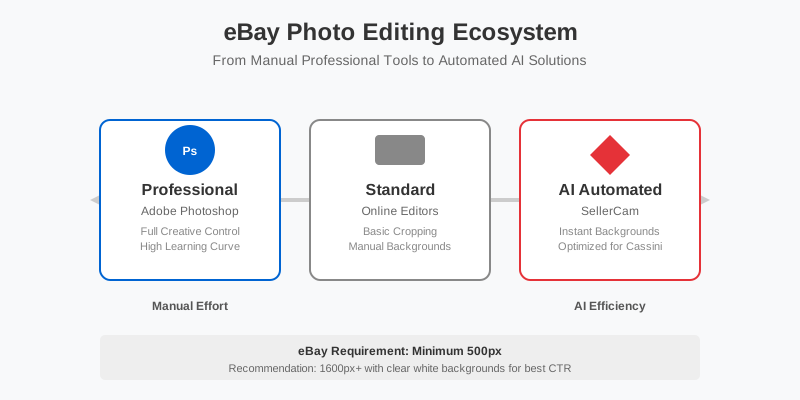
In this guide, we will break down the top-tier editing options available today, ranging from heavyweight industry standards like Adobe Photoshop to revolutionary AI tools like SellerCam that handle the heavy lifting for you. We will also dive deep into the psychology of e-commerce imagery and why specific technical standards can make or break your conversion rates.
Why Photo Editing is Non-Negotiable on eBay
eBay buyers cannot touch, feel, or smell your product. The image is the only bridge between their curiosity and their credit card. High-quality images lead to higher click-through rates (CTR) and significantly lower return rates because the buyer knows exactly what they are getting.
The Impact of Visual Trust
When a buyer searches for "Vintage Leather Jacket," they are met with hundreds of results. A photo that is well-lit, sharp, and isolated against a clean background signals professionalism. It tells the buyer that you are a serious seller who takes care of their inventory. Conversely, a photo taken on a cluttered carpet with yellow indoor lighting suggests a lack of care, leading to fears of undisclosed damage or poor packaging.
Technical SEO and the Cassini Algorithm
eBay's search engine, Cassini, doesn't just look at your keywords; it looks at user engagement. If your photo is poor and people don't click it, Cassini will bury your listing. Furthermore, eBay uses machine learning to "read" your images. If the AI can easily identify the product against a white background, it is more likely to show your item to relevant buyers.
| Feature | eBay Requirement | Recommendation for Best Results |
|---|---|---|
| Minimum Size | 500 x 500 pixels | 1600 x 1600 pixels for zoom capability |
| Background | Solid white to light grey preferred | Pure white (RGB 255, 255, 255) |
| Borders | Not allowed | Keep the product centered with 5-10% padding |
| Text/Watermarks | Strictly prohibited | Use high-quality lighting instead of text overlays |
Top Professional Software for Power Sellers
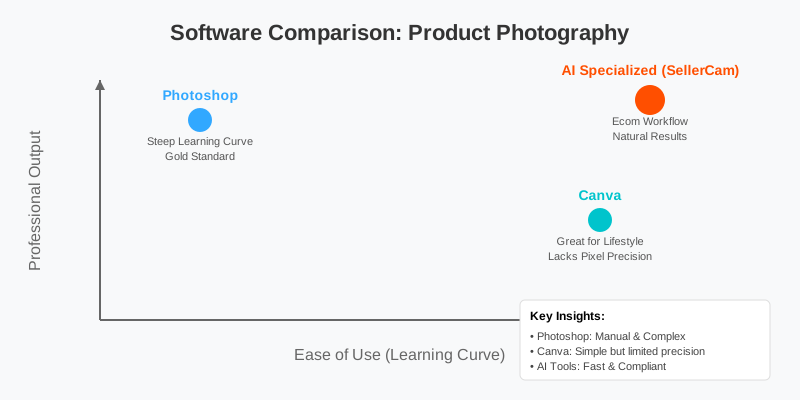
If you are a high-volume seller or a brand owner, you might require the granular control offered by professional-grade software. These tools offer the most flexibility but come with a steep learning curve.
1. Adobe Photoshop: The Gold Standard
Photoshop remains the most powerful tool for image manipulation. For eBay sellers, its "Select Subject" and "Content-Aware Fill" features are lifesavers for removing stray hairs or dust from products.
Advanced Tip: Use the "Patch Tool" to remove small scuffs on pre-owned items. While you must always disclose flaws in your description, cleaning up distracting dust or lint that isn't part of the item itself makes the product look much more appealing. However, the subscription cost and complexity can be overkill for someone just trying to flip a few pairs of sneakers.
2. Adobe Lightroom: The Batch Processing King
If you take 100 photos of different items in the same lighting, Lightroom is your best friend. It allows you to apply "Presets" to hundreds of photos at once, ensuring color consistency across your entire eBay store.
Workflow Example:
- Import all photos from your day's shoot.
- Adjust the "White Balance" on the first photo to remove yellow tints.
- Increase "Clarity" and "Sharpening" slightly to make textures pop.
- "Sync" these settings to the other 99 photos instantly.
3. Affinity Photo: The Budget Professional
Affinity Photo offers almost everything Photoshop does but for a one-time purchase fee (usually around $50-$70). It is excellent for sellers who want professional tools without the monthly "subscription tax." It handles RAW files beautifully, which is vital if you are shooting with a DSLR to capture maximum detail.
Best Free and Mid-Range Tools for Growing Sellers
Not every eBay seller needs a $20/month subscription. For many, free or low-cost web-based tools provide enough horsepower to get the job done.
Photopea: The Browser-Based Photoshop
Photopea is a free, web-based editor that looks and acts exactly like Photoshop. It supports PSD files and offers advanced layering. It’s perfect for the seller who needs advanced features on the go without installing software. Since it runs in the browser, you can use it on a Chromebook or any public computer.
Canva: The Design-First Approach
While Canva is primarily a graphic design tool, its "Background Remover" (available in Pro) is surprisingly effective for product shots. It’s great for creating "Lifestyle" images where you place your product in a digital room setting.
Case Study: A seller of handmade candles used Canva to place their product photos into "cozy living room" templates. This helped buyers visualize the product in their own homes, leading to a 20% increase in sales compared to plain white background shots alone.
GIMP: The Open-Source Alternative
GIMP is powerful and free, but its user interface is notoriously difficult to navigate. If you are tech-savvy and on a $0 budget, it’s a viable option. However, most eBay sellers find it too time-consuming because it lacks the automated "one-click" features found in modern AI tools.
The AI Revolution: Speeding Up Your eBay Workflow
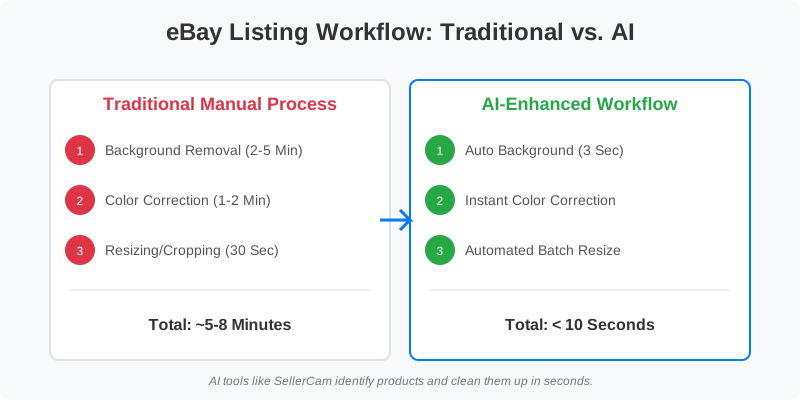
The biggest challenge for eBay sellers is time. Spending 10 minutes editing a single photo for a $30 item isn't scalable. This is where AI-driven tools are changing the game. Instead of manual masking and brushing, AI tools identify the product and clean it up in seconds.
Why AI is the Future for eBay Sellers
AI tools like SellerCam are designed specifically for e-commerce. Unlike general photo editors, they understand what a "product" is. They can automatically generate the pure white background eBay loves, fix lighting inconsistencies, and even provide a "Ghost Mannequin" effect for clothing sellers.
The "Batch" Advantage: Traditional editing requires you to open each file, click buttons, and save. AI workflows allow you to upload a folder of 50 images and have them all "cleaned" while you go grab a cup of coffee. For a reseller listing 20 items a day, this saves roughly 2 hours of manual labor daily.
| Editing Task | Manual Software Time | AI Software Time |
|---|---|---|
| Background Removal | 2-5 Minutes | 3 Seconds |
| Color Correction | 1-2 Minutes | Instant/Automatic |
| Resizing/Cropping | 30 Seconds | Automated Batch |
| Total per Photo | ~5-8 Minutes | < 10 Seconds |
Deep Dive: Mastering the "White Background" Requirement
eBay strongly recommends a solid white background. Why? Because it creates a "catalog" look that is easy on the eyes and works perfectly with mobile app "Dark Mode" and "Light Mode" transitions.
How to achieve it without a professional studio:
- The Poster Board Method: Buy two pieces of white poster board from a dollar store. Place one on a table and lean the other against a wall. This creates a "seamless" curve.
- Overexposure: When taking the photo, slightly overexpose the shot. This makes the whites whiter, but be careful not to "blow out" the details of the product itself.
- Software Correction: This is where software like SellerCam shines. It uses neural networks to distinguish between the product and the background, even if the background has shadows or slight discolorations. It then replaces that background with a hex-code #FFFFFF pure white.
Step-by-Step: How to Edit for eBay Success
Regardless of the software you choose, the process should follow a repeatable pattern to ensure your store looks professional and cohesive.
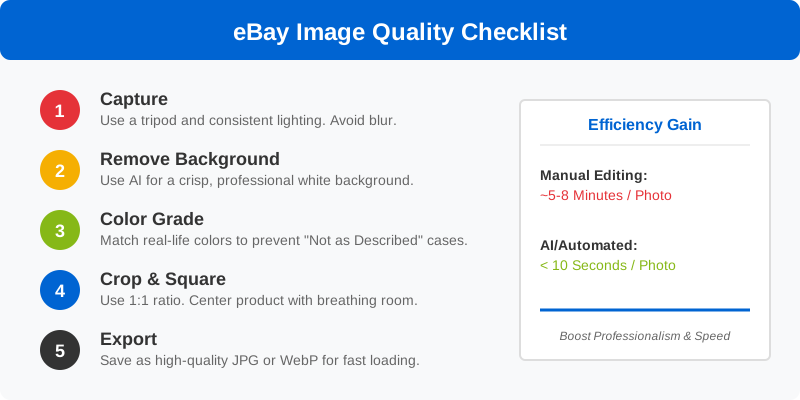
Step 1: Capture with Consistency
Use a tripod and consistent lighting. Even the best software can't fix a blurry, out-of-focus mess. If you use a smartphone, lock the focus and exposure by tapping and holding on the screen.
Step 2: Remove Background
Use an AI background remover to get that crisp, "Amazon-style" white background. This makes your item pop and looks better on mobile devices, where over 60% of eBay purchases happen.
Step 3: Color Grade and Accuracy
Ensure the colors in the photo match the item in real life. This is the #1 way to prevent "Item Not as Described" (INAD) cases. If a shirt is "Navy Blue" but looks "Black" in the photo, you are asking for a return. Use the "Saturation" and "Temperature" sliders to match the physical item under natural light.
Step 4: Crop & Square
eBay's gallery prefers square (1:1) images. Center your product and leave some breathing room around the edges (about 5-10% padding). This ensures that when eBay generates thumbnails, your product isn't cut off.
Step 5: Export for Web
Save as a high-quality JPG or WebP. Aim for a file size under 1MB but a resolution of at least 1600px on the longest side. This allows buyers to use the "Zoom" feature to inspect details without seeing pixels.
Specialized Tools for Clothing Sellers
If you sell apparel on eBay, you face unique challenges. Flat-lays can look limp, and mannequins can be distracting. This is where the "Ghost Mannequin" or "Invisible Mannequin" effect comes in.
What is Ghost Mannequin?
It’s a technique where you take one photo of the garment on a mannequin, and another photo of the garment inside-out (to show the neck/tag area). You then merge them.
- The Old Way: Hours of "Pen Tool" work in Photoshop to mask out the mannequin's neck and arms.
- The New Way: AI tools can now intelligently "fill in" the gaps, giving the clothing a 3D, hollow-man appearance that looks incredibly high-end.
Common Pitfalls to Avoid in Photo Editing
- Over-Filtering: Avoid using Instagram-style filters. They distort colors and make you look like an amateur.
- Hiding Flaws: Never use the "Heal" or "Clone" tool to hide a scratch, hole, or stain on a used item. This is fraudulent and will lead to account suspension. Instead, use the tool to remove a piece of lint next to the item.
- Low Resolution: Don't upscale small images. If you take a tiny photo, software can't "add" detail that isn't there. Always start with the highest resolution possible.
- Inconsistent Aspect Ratios: If one listing has square photos and the next has vertical ones, your store looks messy. Stick to 1:1 for everything.
FAQ: Frequently Asked Questions
Q: Does eBay allow borders or frames? A: No. eBay's policy explicitly states that images should not have borders. This is because borders interfere with how images are displayed on different screen sizes.
Q: Can I use stock photos from the manufacturer? A: Only if the item is Brand New. Even then, eBay's algorithm and buyers prefer "real" photos. For used items, using a stock photo is a violation of policy and highly discouraged.
Q: Is mobile editing as good as desktop editing? A: For 90% of eBay sellers, yes. Modern apps like SellerCam provide AI tools that are actually more efficient than desktop software because they utilize the phone's built-in camera processing power.
Final Verdict: Which Software Should You Choose?
The "best" software depends entirely on your volume and technical comfort level.
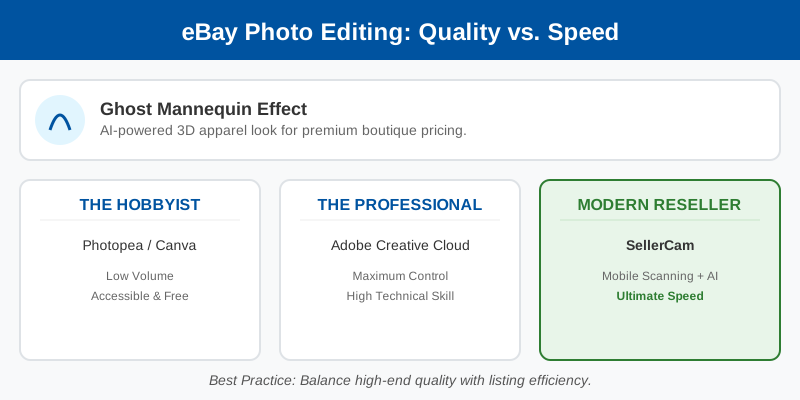
- For the Hobbyist: Use Photopea or Canva. They are accessible and get the job done for a few listings a week without any financial commitment.
- For the Professional Photographer: Stick with Adobe Creative Cloud. The control is unmatched if you are shooting high-end jewelry or art where every pixel of color must be perfect.
- For the Modern Reseller/Entrepreneur: Use SellerCam. If you are listing 10, 50, or 100 items a week, you cannot afford to spend hours editing. The ability to use your phone's camera as a professional scanner and have AI handle the background and enhancement instantly is the ultimate competitive advantage.
Conclusion: Don't Let Poor Photos Kill Your Sales
Your eBay listing is a 24/7 digital storefront. If the windows are dirty (bad photos), customers won't walk in. By leveraging the right software—whether it's the precision of Photoshop or the blistering speed of SellerCam's AI—you can transform your eBay business from a hobby into a powerhouse.
Remember, the goal of photo editing isn't to create "art"—it's to provide clarity, build trust, and remove friction from the buying process. Clean backgrounds, accurate colors, and high resolution are the three pillars of eBay success.
Ready to see the difference AI can make? Stop spending hours in front of a computer screen and start scaling your business.
Ready to upgrade your product photos? Try SellerCam's AI camera →
Author

Categories
More Posts
How to Remove Background Watermark from Image: A Professional Guide for Sellers
Master the art of removing background watermarks and cleaning product images. Learn professional techniques, legal considerations, and AI tools for high-converting photos.

Choosing the Right Amazon Product Image Editing Service: A Strategic Guide
Discover how to choose an Amazon product image editing service that boosts conversions, meets platform requirements, and scales with your brand.

Mastering Background Removal in Adobe Illustrator: A Comprehensive Guide for E-commerce Sellers
Learn five professional methods to remove backgrounds in Adobe Illustrator, from Image Trace to Clipping Masks, and discover faster AI alternatives for product photography.
Newsletter
Join the community
Subscribe to our newsletter for the latest news and updates