
The Ultimate Guide to Tools to Remove Background from Image for E-commerce
Discover the best tools to remove background from images. Compare AI vs. manual methods, platform requirements, and learn how to scale your product photography.
In the hyper-competitive world of e-commerce, your product photo is often the only thing standing between a customer clicking "Add to Cart" or scrolling past to a competitor. The most fundamental element of a professional product listing is a clean, distraction-free background. Whether you are selling on Amazon, eBay, or your own Shopify store, knowing which tools to remove background from image effectively is a superpower for any online entrepreneur.
Removing a background isn't just about making things look "nice." It’s about conversion rates, brand trust, and meeting strict marketplace requirements. Today, we have moved far beyond the days of spending hours with the Pen Tool in Photoshop. AI-driven automation has democratized high-quality imagery, allowing even small-scale sellers to produce studio-quality results in seconds.
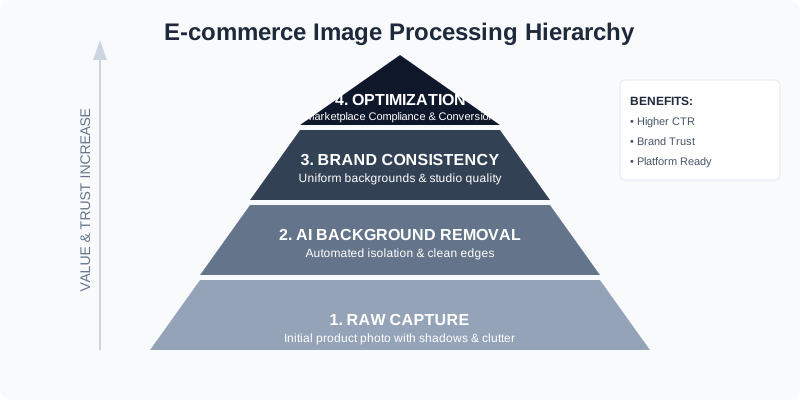
Why Background Removal is Non-Negotiable
A cluttered background distracts the eye. When a customer lands on your page, you have approximately 50 milliseconds to form an impression. If your product is sitting on a messy kitchen table or has harsh shadows from a bedroom lamp, you are signaling a lack of professionalism.
Beyond aesthetics, there are technical reasons. Search engines and marketplace algorithms favor clean images. White backgrounds make it easier for AI vision systems to index your products, potentially improving your SEO rankings.
The Psychology of the White Background
Psychologically, a pure white background eliminates "visual noise." In a physical store, a customer can pick up an item, feel its weight, and see it from all angles. Online, the image must do all that work. By removing the background, you isolate the product, forcing the viewer's brain to focus entirely on the features, textures, and quality of the item itself. This isolation creates a sense of "premium" quality that busy, lifestyle-only shots sometimes struggle to convey.
| Feature | White Background | Lifestyle Background | Transparent (PNG) |
|---|---|---|---|
| Primary Use | Marketplace Main Image | Social Media / Ads | Website Design / Collages |
| CTR Impact | High (Clearer focus) | Medium (Contextual) | Variable |
| Amazon Compliant | Yes (Mandatory) | No (For main image) | No |
| File Size | Smallest | Largest | Medium |
Top Categories of Tools to Remove Background from Image
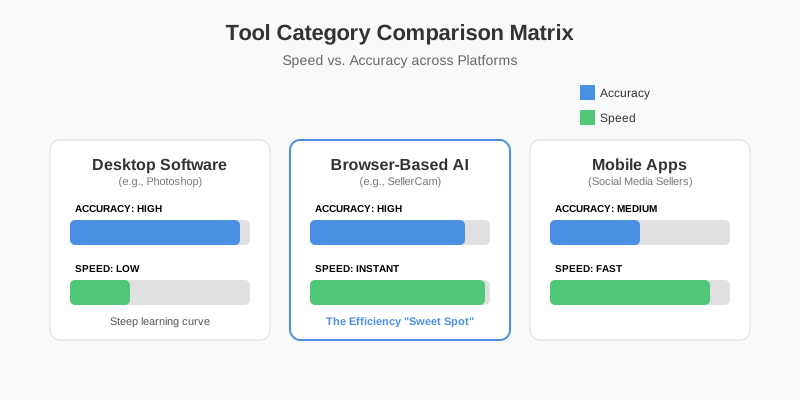
When searching for the right solution, you'll find that tools generally fall into three categories: Professional Desktop Software, Browser-Based AI Tools, and Mobile Apps. Each has its own place in a seller's workflow.
1. Professional Desktop Software (The Powerhouses)
Adobe Photoshop remains the industry standard. With its "Select Subject" and "Remove Background" quick actions, it has integrated AI to speed up the process. However, the learning curve is steep, and the monthly subscription can be a burden for those who only need background removal. Desktop software is best for complex edits where you need to manually fix hair, lace, or highly reflective surfaces that AI might struggle with.
2. Browser-Based AI Tools (The Efficiency Kings)
This is where most e-commerce sellers find their "sweet spot." Tools like SellerCam allow you to upload a photo and get a transparent or white background instantly. The advantage here is accessibility; you don't need a high-end computer to process images. These tools use cloud-based GPUs to process complex mathematical models, delivering results in seconds that would take a human 15 minutes to mask manually.
3. Mobile Apps (The On-the-Go Solution)
Perfect for social media sellers (Instagram/TikTok), mobile apps allow for quick edits. However, they often lack the precision required for complex edges like hair, fur, or transparent glass. They are excellent for "quick and dirty" posts but often fall short for high-resolution Amazon listings where every pixel counts.
Deep Dive: How AI Background Removal Works
Modern tools use Deep Learning (specifically Convolutional Neural Networks) to identify the "mask" of an object. The AI is trained on millions of images to understand the difference between a shoe and the floor it stands on.
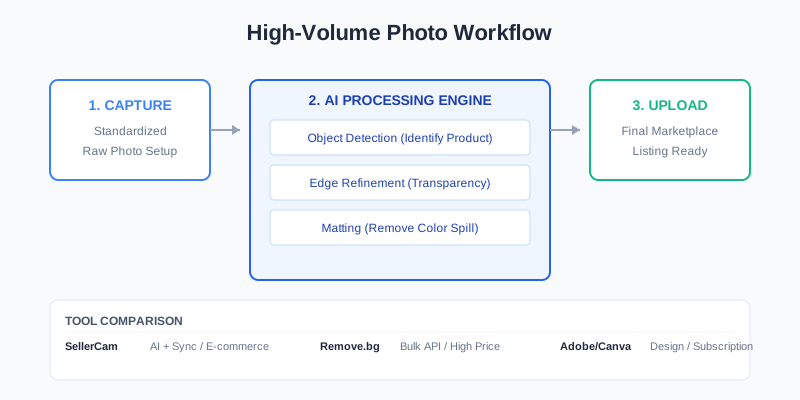
When you use a tool like SellerCam, the engine performs three distinct steps:
- Object Detection: Identifying what the main product is. The AI looks for high-contrast boundaries and recognizable shapes.
- Edge Refinement: Calculating the transparency of pixels at the border (crucial for "fuzzy" items). This is often called "alpha matting."
- Matting: Separating the foreground from the background without leaving "color spill" (the reflected light from the old background on the product). For example, if you photograph a white bottle on a green grass lawn, the bottle might have a green tint on its edges. Advanced AI tools can "de-contaminate" these colors.
Comparison of Leading Background Removal Tools
To help you choose, let's look at the data. We tested the most popular options based on speed, edge quality, and pricing.
| Tool Name | Technology | Best For | Price Point |
|---|---|---|---|
| SellerCam | AI + Camera Sync | E-commerce Sellers | Free / Pro Tiers |
| Remove.bg | General AI | Bulk API users | High (Per image) |
| Adobe Express | Firefly AI | Graphic Design | Part of Creative Cloud |
| Canva Pro | Integrated AI | Social Media Posts | Subscription |
| Photoshop | Manual + AI | Professional Retouchers | High Subscription |
Case Studies: Real-World Impact
Case Study 1: The Jewelry Startup
A small jewelry brand was struggling with low conversion rates on Etsy. Their original photos were taken on a wooden desk with a smartphone. While "authentic," the wood grain distracted from the intricate silver details. By using an AI tool to remove the background and switch to a soft grey gradient, their Click-Through Rate (CTR) increased by 24% in just two weeks. The clean background allowed the shine of the silver to become the focal point.
Case Study 2: The Amazon Reseller
A high-volume reseller of electronics needed to process 500+ items per month. Manually editing each photo was costing them $2 per image via outsourcing. By switching to a batch-processing AI tool, they reduced their cost to $0.05 per image and cut their "time-to-market" from 3 days to 30 minutes.
Step-by-Step Workflow for High-Volume Sellers
If you have 100 products to list, you cannot afford to spend 5 minutes per photo. You need a pipeline.
Step 1: Standardized Capture
Even the best AI works better with a decent original. Try to shoot against a high-contrast background. If your product is white, don't shoot it against a white wall; use a grey or blue backdrop to help the AI "see" the edges. Ensure your lighting is bright and even to minimize "noise" in the shadows, which can confuse AI edge detection.
Step 2: Batch Processing
Upload your images to a tool that supports batching. This ensures consistency across your entire catalog. Consistency is key for brand perception—you don't want one photo to have a warm white background and the next to have a cool blue-white tint. Batch processing also allows you to apply the same crop and margin settings to every image simultaneously.
Step 3: Edge Inspection and Manual Tweaks
AI is 99% accurate, but that 1% can be tricky. Check items with "holes" (like the handle of a mug) or transparent elements (like glassware). Most professional tools offer a "restore/erase" brush. Use this to quickly fix any areas where the AI might have accidentally removed a part of the product that looked like the background.
Step 4: Exporting for the Web
Always export in the correct format. For white backgrounds, JPG is usually best as it offers smaller file sizes. If you need transparency for your website's UI, use PNG or WebP. Remember to compress your images; a 5MB product photo will slow down your site and hurt your SEO.
Marketplace Requirements: A Quick Reference
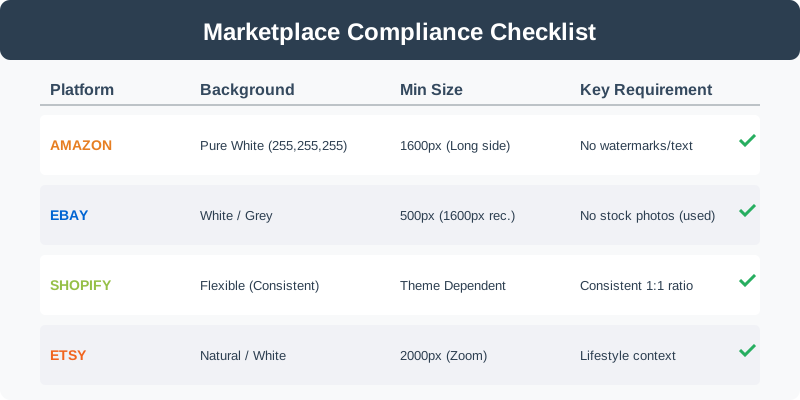
Every platform has its own rules. Using the wrong background can actually get your listing suppressed or shadow-banned.
| Platform | Background Requirement | Aspect Ratio | Recommended Resolution |
|---|---|---|---|
| Amazon | Pure White (RGB 255) | 1:1 (Square) | 2000 x 2000 px |
| eBay | Solid White or Light Grey | 4:3 or 1:1 | 1600 px (Long side) |
| Etsy | Clean/Aesthetic | 4:3 or 5:4 | 2000 px (Minimum) |
| Shopify | Consistent (User choice) | Consistent | 2048 x 2048 px |
Advanced Techniques: Beyond Simple Removal
Once the background is gone, the work isn't quite finished. To make a product truly "pop," consider these additions:
Adding a Natural Shadow
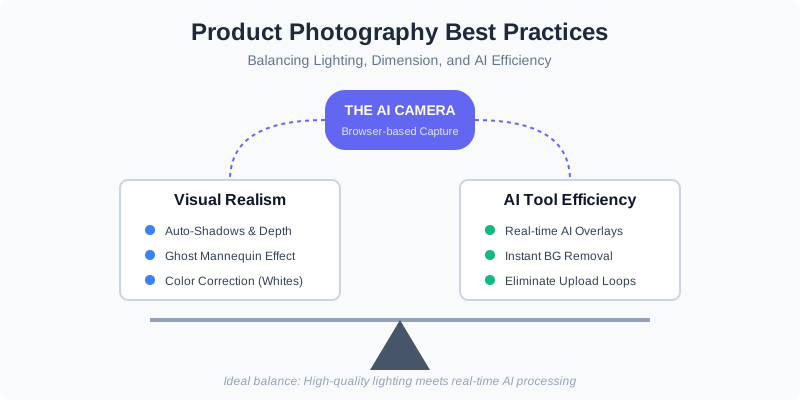
A product floating in pure white space can look "fake" or "uncanny." Adding a subtle drop shadow or a reflection shadow gives it weight and dimension. Many AI tools now offer "Auto-Shadow" features that calculate the light source based on the product's shape. For shoes, a "contact shadow" (a dark area where the shoe touches the ground) is essential for realism.
The Ghost Mannequin Effect
For apparel sellers, removing the background is only half the battle. You often need to remove the mannequin as well. This requires "hollow man" or "ghost mannequin" processing, which combines multiple shots (one of the front, one of the inside back) to show the inside of the garment. This gives the clothing a 3D shape without the distraction of a plastic model.
Color Correction and Vibrance
When you remove a background, you might notice that the original lighting was too yellow or too blue. Always perform a final "Level" adjustment to ensure your whites are truly white and your product colors are accurate to real life. Increasing the "Vibrance" slightly can make the product look more appealing without making the colors look artificial.
Handling Transparency and Refraction
Glass bottles and liquid-filled containers are the ultimate test for any background removal tool. The "background" is actually visible through the product. High-end AI tools can preserve the transparency of the glass while removing the background behind it, allowing you to place the bottle on any new scene while keeping the realistic look of light passing through the liquid.
Common Pitfalls to Avoid
- Over-Smoothing Edges: Some tools apply too much "feathering," making the product look blurry at the edges. A sharp, crisp edge is usually preferred for e-commerce.
- Ignoring the "Halo" Effect: This happens when a thin line of the old background remains around the product. This is usually caused by low-contrast original photos.
- Incorrect Aspect Ratios: Amazon prefers square images. If you remove the background but leave the image in a 4:3 ratio, the marketplace will add its own borders, which might not match your white perfectly.
- Poor Lighting in the Original: No tool can perfectly fix a product that was shot in the dark. AI needs "information" (pixels) to work with. If the product is underexposed, the edges will be grainy and the result will look amateurish.
Professional Tips for Better Results
- The "Two-Foot" Rule: Keep your product at least two feet away from the background when shooting. This creates a natural depth of field and makes it much easier for AI tools to distinguish between the foreground and background.
- Use a Tripod: Even if you are using a smartphone, a tripod ensures that every shot is framed identically, which makes batch processing and "Ghost Mannequin" editing much faster.
- Clean Your Lens: It sounds simple, but a fingerprint on your camera lens creates a "haze" that softens edges, making background removal much less precise.
The Future of Product Imagery: AI Cameras
The next evolution isn't just removing backgrounds after the fact—it's capturing them correctly from the start. Tools like SellerCam are pioneering "AI Camera" technology. By using your smartphone's camera directly through a browser-based interface, the AI can provide real-time overlays and instant background removal as you snap the shutter.
This eliminates the "Upload -> Wait -> Download" loop entirely. Imagine pointing your phone at a product and seeing it on a pure white, Amazon-ready background on your screen before you even take the picture. This is the future of e-commerce efficiency.
Frequently Asked Questions (FAQ)
Q: Can I remove the background for free? A: Yes, many tools offer free versions, but they often limit the resolution of the output. For professional printing or high-quality web zoom, you will usually need a paid version to get the full-resolution file.
Q: Is PNG or JPG better for e-commerce? A: Use JPG for your main marketplace images (Amazon/eBay) because they require a solid background and JPGs are smaller. Use PNG only when you need a transparent background for your own website's design.
Q: Does background removal affect SEO? A: Indirectly, yes. Google Images prefers clear, high-contrast photos. Furthermore, faster loading times (from optimized, background-removed images) and higher CTRs are positive signals to search engines.
Q: How do I handle products with fur or hair? A: These are the most difficult. Use a tool specifically designed for "fine detail" or "matting." If the AI fails, you may need to use the "Refine Edge" tool in Photoshop for a manual touch-up.
Conclusion: Making the Right Choice
Choosing from the many tools to remove background from image depends on your volume and your platform. If you are a casual seller, a free browser tool might suffice. However, if you are scaling an e-commerce brand, you need a tool that understands the nuances of product photography—lighting, shadows, and platform compliance.
Stop wasting hours on tedious editing. The technology exists to handle the "grunt work" for you, allowing you to focus on what actually grows your business: sourcing great products and marketing them to the world. A clean, professional image is the foundation of your online store's credibility. By mastering these tools, you aren't just "cleaning up photos"—you are building a brand that customers trust.
Ready to see the difference for yourself? Try SellerCam’s AI camera today and transform your raw photos into professional listings in a single click.
作者

分类
更多文章

How to Remove Background from Image in Google Slides: The Ultimate Professional Guide
Master background removal in Google Slides using built-in AI tools, third-party add-ons, and professional AI cameras to create stunning presentations.

Best Photo Editing Software for eBay Sellers: From Professional Suites to AI Automations
Discover the best photo editing software for eBay. Compare professional tools, free editors, and AI-powered solutions to boost your sales and meet eBay's image requirements.

The Ultimate Guide to Ghost Mannequin Photography Studio Setup and Success
Master the art of ghost mannequin photography. Learn studio setup, lighting techniques, and how AI is revolutionizing the invisible mannequin effect for ecommerce.
邮件列表
加入我们的社区
订阅邮件列表,及时获取最新消息和更新