
How to Remove Background Watermark from Image: A Professional Guide for Sellers
Master the art of removing background watermarks and cleaning product images. Learn professional techniques, legal considerations, and AI tools for high-converting photos.
We've all been there: you find the perfect product shot or a reference image that fits your brand's aesthetic, but it's marred by a distracting, semi-transparent watermark or a cluttered background that makes it unusable for your store. For e-commerce sellers, a watermark isn't just a visual nuisance; it’s a barrier to professional presentation and customer trust.
Whether you are dealing with stock photo marks, legacy supplier logos, or simply need to clean up an image for a marketplace like Amazon or Etsy, knowing how to remove background watermarks effectively is a critical skill. In this guide, we will dive deep into the methods, the legalities, and the AI-powered shortcuts that can save you hours of manual editing.
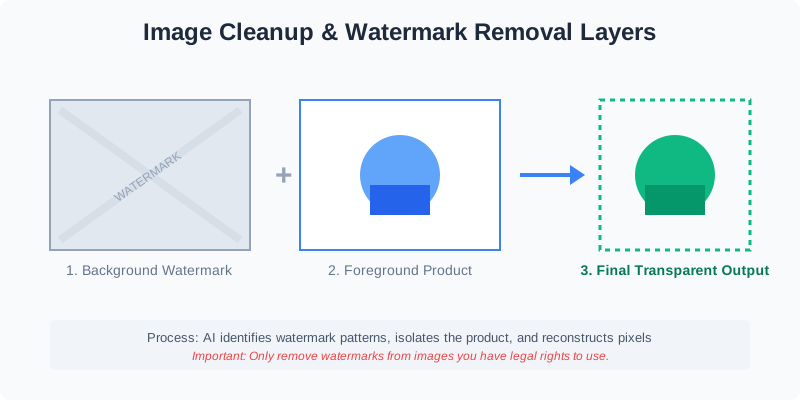
The Reality of Watermarks in E-commerce
Watermarks typically serve two purposes: protecting intellectual property and branding. However, for a reseller or a brand owner using authorized supplier assets, these marks can interfere with the "clean" look required by modern marketplaces.
Before we touch a single pixel, we must address the elephant in the room: Legal Rights. Never remove a watermark from an image you do not have the right to use. If you have the license or permission but the watermark is still present (common with some wholesale catalogs), then technical removal is your next step.
Why Clean Images Matter for Your Bottom Line
A study of top-performing Shopify stores shows a direct correlation between image "purity" and conversion rates. When a customer sees a watermark, their brain registers "third-party" or "low-effort." When they see a crisp, white-background image, they register "brand authority."
| Image Characteristic | Impact on Trust | Conversion Lift (Est.) |
|---|---|---|
| Watermarked / Messy | High Friction | -15% to -30% |
| Busy Background | Medium Friction | Base |
| Clean White Background | Low Friction | +20% to +45% |
| Lifestyle + Clean Main | Minimal Friction | +50% |
Method 1: AI-Powered Background Removal (The Modern Shortcut)
The most effective way to "remove" a background watermark is often to remove the entire background itself. Modern AI tools, like SellerCam, don't just blur the background; they analyze the object's geometry and recreate the edges, effectively deleting any watermarks contained within the background layer.
How AI Distinguishes Watermarks from Products
AI models are trained on millions of images. They recognize the difference between a solid object (like a shoe or a watch) and the semi-transparent overlay of a watermark. By using a specialized background remover, you bypass the need for tedious "cloning" or "healing" tools in Photoshop.
Detailed Steps for AI Removal
- Upload the Source: Drag your watermarked image into the AI processor.
- Edge Detection: The AI identifies the "mask" (the area to keep).
- Inpainting: For watermarks that slightly touch the product, the AI uses inpainting to reconstruct the missing pixels of the product edge.
- Export: Save as a PNG with transparency or a JPG with a pure white background.
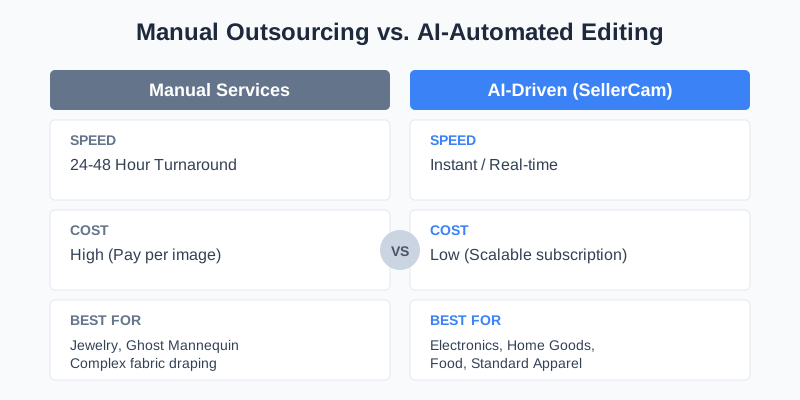
Method 2: Manual Content-Aware Fill
If the watermark overlaps with the product itself, background removal alone won't suffice. In these cases, professional editors use "Content-Aware Fill."
- Selection: Use a Lasso tool to tightly select the watermarked area.
- Analysis: The software looks at the surrounding pixels (texture, color, and lighting).
- Interpolation: The AI "guesses" what is behind the watermark and fills the gap.
While powerful, this method often leaves "ghosting" or blurry patches on complex textures like fabric or wood grain. This is why we always recommend high-resolution originals whenever possible.
Deep Dive: Handling Different Types of Watermarks
Not all watermarks are created equal. Understanding what you are up against helps you choose the right tool.
1. The Semi-Transparent Overlay
These are the most common. They cover a large portion of the image with low opacity.
- Challenge: They alter the color values of the pixels underneath.
- Solution: AI-based frequency separation or deep learning models that can "subtract" the watermark layer based on pattern recognition.
2. The Solid Logo Corner
Often found in the bottom right or left corner.
- Challenge: If it's in the background, it's easy. If it's on the product, it's hard.
- Solution: Cropping (if it doesn't ruin the composition) or AI object removal.
3. The Tiled Pattern
Small logos repeated across the entire frame.
- Challenge: Extremely distracting and covers every detail.
- Solution: This requires "Deep Convolutional Neural Networks" (CNNs) which are specifically trained to identify and remove repetitive noise patterns.
Comparing Tools for Watermark and Background Cleanup
Not all tools are created equal. Some are designed for casual social media users, while others are built for high-volume e-commerce workflows.
| Tool Type | Best For | Pros | Cons |
|---|---|---|---|
| Online AI Removers | Quick product cleanup | Fast, no skill required | Limited manual control |
| Desktop Software (PS) | Complex overlaps | Precise, professional | High learning curve & cost |
| Mobile Apps | On-the-go social posts | Convenient | Lower resolution output |
| SellerCam AI | E-commerce listings | Marketplace ready, AI-optimized | Specific to product photos |
Step-by-Step Workflow for Clean Product Photos
To achieve the best results, follow this professional workflow. It ensures that even if your source image has watermarks or clutter, the final result looks like it was shot in a high-end studio.

1. Source the Highest Resolution Possible
The more data the AI has to work with, the better it can distinguish between the watermark and the product. A 2000px image will always clean up better than a 500px thumbnail. If you only have a low-res image, consider using an AI Upscaler before attempting watermark removal.
2. Apply AI Background Removal
Use a tool like SellerCam to strip away the background. If the watermark was only in the background, your job is done in one click. This is the "Golden Rule" of e-commerce: when in doubt, remove the background entirely.
3. Refine Edges and Shadows
Look closely at areas where the watermark might have touched the product. Use a "Refine Edge" tool to ensure no "color bleed" from the watermark remains on the product's silhouette. Add a subtle "Drop Shadow" or "Contact Shadow" to make the product look grounded and realistic on its new white background.
4. Color Correction and Matching
Sometimes, removing a watermark leaves the underlying area looking slightly desaturated or "muddy." A quick boost in contrast or saturation in that specific area can fix the "flat" look. Ensure the white balance is consistent across all images in your listing.
Common Challenges and How to Overcome Them
Challenge: The Watermark is the Same Color as the Product
If you have a white watermark on a white wedding dress, AI might struggle to see the boundary.
- Pro Tip: Use a "Contrast Mask" first. Increase the contrast of the image temporarily to help the AI see the edges, perform the removal, and then revert the contrast settings.
Challenge: Complex Textures (Fur, Hair, Mesh)
Watermarks on complex textures are the "Final Boss" of image editing.
- Pro Tip: Don't try to remove the watermark perfectly. Instead, remove the background and use a "Texture Overlay" or "Clone Stamp" at 20% opacity to gradually blend the area back to a natural state.
Marketplace Requirements Checklist
Each platform has its own "tolerance" for image artifacts. If you fail to remove background watermarks properly, your listings might be suppressed by the platform's automated quality bots.
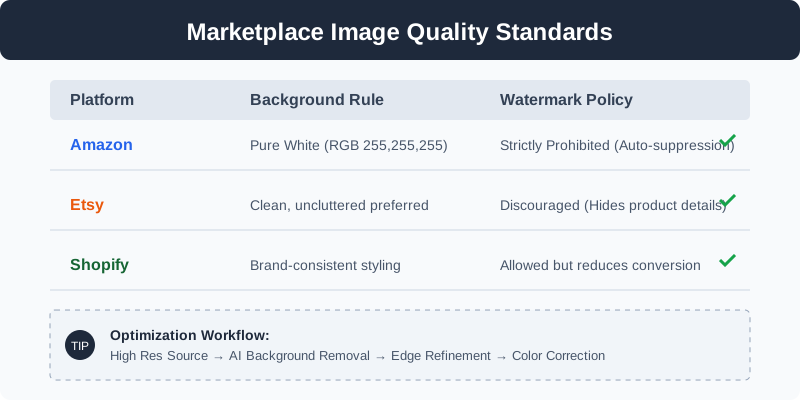
| Platform | Background Rule | Watermark Policy |
|---|---|---|
| Amazon | Pure White (255,255,255) | Strictly Prohibited |
| eBay | Preferred Neutral | Not allowed on main image |
| Etsy | High Flexibility | Allowed but discouraged |
| Google Shopping | No obstructions | Automatic rejection if detected |
Case Study: The "Generic to Premium" Transformation
Let's look at a real-world example. A dropshipping seller was using images from a factory in Shenzhen. The images had a large gray watermark across the center and a cluttered warehouse background.
- Initial State: Conversion rate was 0.8%. Customers asked if the product was "used" or "fake."
- The Process:
- Used AI to remove the warehouse background.
- Used Content-Aware fill to remove the central watermark.
- Applied a consistent "Natural Shadow" to all 5 gallery images.
- Added a lifestyle "Contextual" background for the hero shot.
- Result: Conversion rate jumped to 2.4%. The seller was able to increase the price from $24.99 to $32.99 because the perceived value of the brand increased.
Advanced Pro Tip: The "Ghost Mannequin" Integration
If you are removing backgrounds and watermarks from apparel, consider the Ghost Mannequin effect. Simply removing the background can leave the clothing looking flat. By using AI to clean the background and then applying a 3D-depth effect, you create a premium look that watermarked supplier photos can never achieve.
Why You Should Stop Using Supplier Images Directly
Many sellers simply "copy-paste" supplier photos, watermarks and all. This is a recipe for a "Race to the Bottom" on price. When you take the time to remove backgrounds, clean up watermarks, and standardize your gallery, you can often charge a 10-20% premium over competitors using the same source files. It’s about creating a "Brand Moat."
FAQ: Frequently Asked Questions
Q: Is it illegal to remove watermarks? A: It depends on the license. If you own the rights to the image but the creator provided a watermarked version, it is legal. Removing watermarks from copyrighted images you don't own to bypass payment is a violation of the DMCA.
Q: Can I remove watermarks for free? A: Yes, there are free tools, but they often limit the resolution of the output. For professional e-commerce, a paid tool that preserves 4K resolution is usually worth the investment.
Q: Does removing a watermark reduce image quality? A: If done manually with a "Blur" tool, yes. If done with AI "Inpainting," the quality is preserved because the AI generates new pixels to match the original resolution.
Q: How long does it take to clean 100 images? A: Manually in Photoshop? 3-5 hours. Using a batch AI processor like SellerCam? Less than 5 minutes.
Summary: Choosing Your Path
Removing background watermarks is no longer a task that requires a $50/hour graphic designer. With the right AI tools, you can transform "messy" source images into "marketplace-ready" assets in seconds.
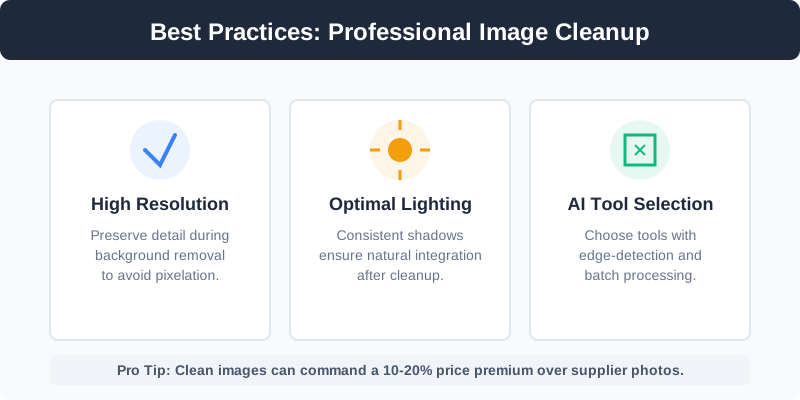
Key Takeaways:
- AI is your friend: For 90% of cases, a high-quality background remover will eliminate the watermark problem entirely.
- Respect the Law: Ensure you have usage rights before attempting removal.
- Consistency is King: Don't just clean one photo; standardize your entire catalog for a professional brand feel.
- Resolution Matters: Always start with the largest file size available to give the AI the best chance at a perfect reconstruction.
Ready to see the difference for yourself? Instead of struggling with manual brushes, let AI do the heavy lifting. Try SellerCam’s AI camera and background tools to instantly upgrade your product photography from "amateur" to "authoritative."
Ready to upgrade your product photos? Try SellerCam's AI camera →
作者

分类
更多文章

Mastering Amazon Product Image Editing: The Ultimate Guide to High-Conversion Visuals
Learn the essential techniques for Amazon product image editing. From technical compliance to AI-powered background removal, discover how to boost your sales with professional visuals.

How to Remove Background from Image in Google Slides: The Ultimate Professional Guide
Master background removal in Google Slides using built-in AI tools, third-party add-ons, and professional AI cameras to create stunning presentations.

Mastering Background Removal for Product Images: The Ultimate Seller's Guide
Learn how to remove backgrounds from product images efficiently. Discover pro techniques using AI, manual tools, and platform-specific requirements to boost sales.
邮件列表
加入我们的社区
订阅邮件列表,及时获取最新消息和更新